StarTech.com PEXUSB321C Manual


Læs gratis den danske manual til StarTech.com PEXUSB321C (2 sider) i kategorien Ikke kategoriseret. Denne vejledning er vurderet som hjælpsom af 16 personer og har en gennemsnitlig bedømmelse på 4.0 stjerner ud af 8.5 anmeldelser. Har du et spørgsmål om StarTech.com PEXUSB321C, eller vil du spørge andre brugere om produktet?

Side 1/2
Quick-Start Guide
To view manuals, FAQs, videos, drivers, downloads, technical drawings, and more, visit www.startech.com/support.
Manual Revision: August 27, 2020
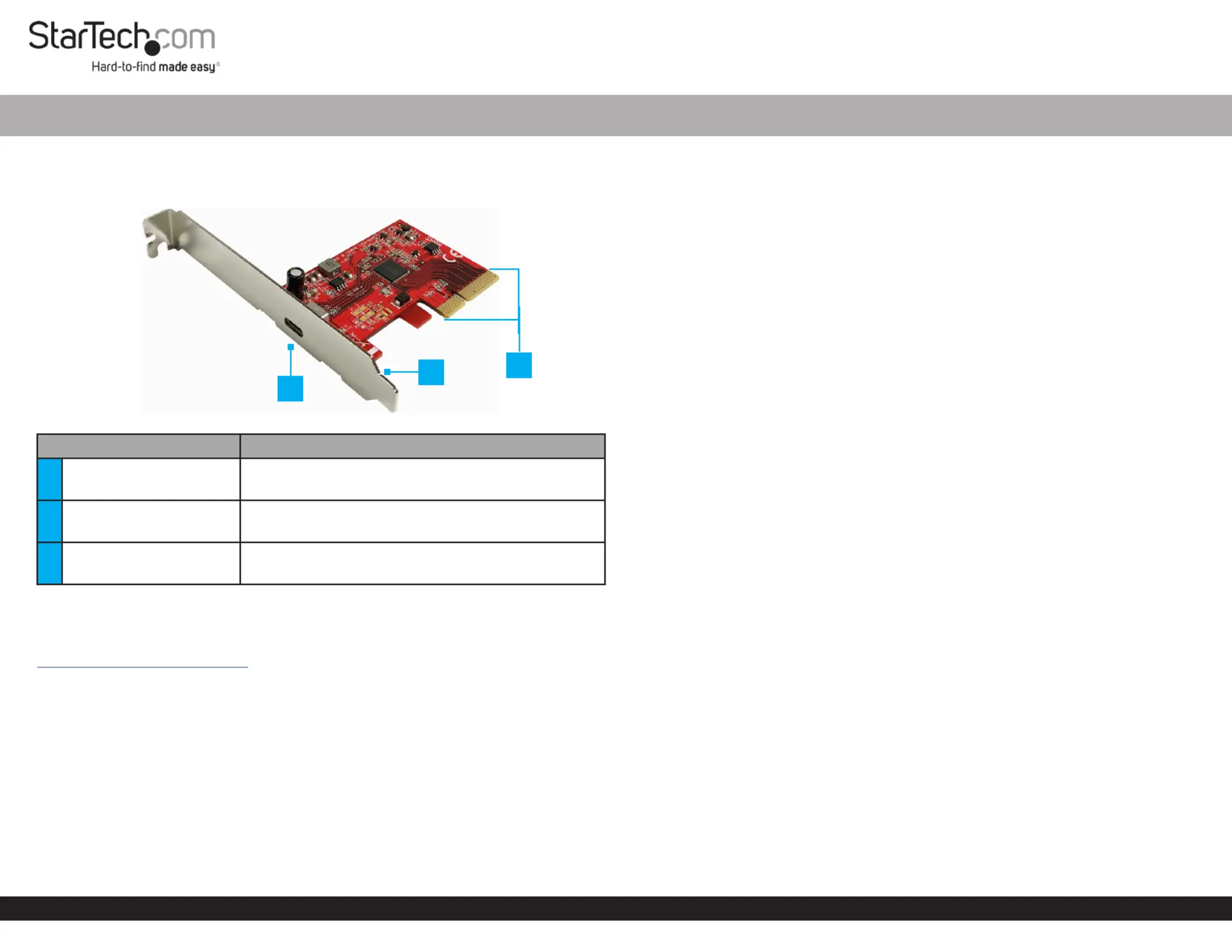
Product Diagram (PEXUSB321C)
Front Angle View
Port Function
1USB-C Port
Connect a USB Peripheral Device
SuperSpeed USB 20Gbps
Congurable for and Full Prole Low Height
3PCIe p1-x4 Connector
Connect the to the ® in USB Card PCI Express Slot
the Computer
Requirements
For the latest requirements, please visit:
www.startech.com/PEXUSB321C.
Computer with an available PCI Express slot (x4, x8, or x16)
Tools
Small Phillips Head Screwdriver
Hardware Installation
Warning: USB Cards can be damaged by static electricity. Make sure that the
Installer Computer Case is properly grounded before they open the or touch the USB
Card. The should wear an when installing any computer Installer Anti-Static Strap
component. If an is not available, discharge any built-up static Anti-Static Strap
electricity by touching a large for several seconds. Only Grounded Metal Surface
handle the by its edges and do not touch the gold connectors.USB Card
1-Port USB Card - SuperSpeed USB 20Gbps - 1x USB-C® - PCIe
Installing the Low Prole Bracket
By default the is attached to the . Depending on the Full Prole Bracket USB Card
system conguration it may be necessary to remove the and Full Prole Bracket
replace it with the (included).Low Prole Bracket
1. Using a , remove the two securing Small Phillips Head Screwdriver Bracket Screws
the to the .Full Prole Bracket USB Card
2. Align the on the with the on the Screw Holes USB Card Screw Holes Low Prole
Bracket USB Card Screw Holes Low . Making sure the is sitting on-top of the on the
Prole Bracket.
3. Insert the through the and into the on the Bracket Screws USB Card Screw Holes
Low Prole Bracket.
4. Using the , tighten the being Small Phillips Head Screwdriver Bracket Screws,
careful not to over-tighten.
Installing the USB Card
1. Turn o the and any that are connected Computer Peripheral Devices
(e.g. printers, external hard drives, etc.).
2. Unplug the from the rear of the and disconnect any Power Cable Computer
Peripheral Devices that are connected.
3. Remove the from the . Cover Computer Case
Note: Consult the documentation that came with the for details about Computer
how to do this safely.
4. Locate an open (x4, x8, or x16) and remove the corresponding PCI Express Slot
Metal Cover Plate Computer Case from the rear of the . In most instances, the
Metal Cover Plate Computer Case is attached to the rear of the with a single
Screw Screw. Save this for the next step.
5. Gently insert the into the open and fasten the USB Card PCI Express Slot Bracket
to the rear of the using the from step 4. Computer Case Screw
6. Place the rear onto the . Cover Computer Case
7. Reconnect the to the rear of the .Power Cable Computer
8. Reconnect all of the that were disconnected in step 2.Peripheral Devices
9. Connect a to the on the .USB Peripheral Device USB-C Port USB Card
3
1
2


Produkt Specifikationer

Mærke: StarTech.com
Kategori: Ikke kategoriseret
Model: PEXUSB321C
Bredde: 80 mm
Dybde: 51 mm
Højde: 22 mm
Vægt: 37 g
Produktfarve: Rød
Pakkevægt: 101 g
Pakkedybde: 170 mm
Pakkebredde: 142 mm
Pakkehøjde: 30 mm
Opbevaringstemperatur (T-T): -25 - 85 °C
Relativ luftfugtighed ved drift (H-H): 15 - 90 %
Driftstemperatur (T-T): 0 - 85 °C
Hurtig installationsvejledning: Ja
Harmoniseret systemkode (HS): 84733020
Bæredygtighedscertifikater: CE, RoHS
Understøttede Windows-operativsystemer: Windows 10, Windows 10 Education, Windows 10 Education x64, Windows 10 Enterprise, Windows 10 Enterprise x64, Windows 10 Home, Windows 10 Home x64, Windows 10 IOT Core, Windows 10 IoT Enterprise, Windows 10 Pro, Windows 10 Pro x64, Windows 10 x64, Windows 8, Windows 8 Enterprise, Windows 8 Enterprise x64, Windows 8 Pro, Windows 8 Pro x64, Windows 8 x64, Windows 8.1, Windows 8.1 Enterprise, Windows 8.1 Enterprise x64, Windows 8.1 Pro, Windows 8.1 Pro x64, Windows 8.1 x64
Understøttede Mac-operativsystemer: Mac OS X 10.13 High Sierra, Mac OS X 10.14 Mojave, Mac OS X 10.15 Catalina, Mac OS X 11.0 Big Sur, Mac OS X 13.0 Ventura
Understøttede Linux-operativsystemer: Ja
Hovedkassen højde (udvendigt): 310 mm
Hovedkassens længde (udvendigt): 380 mm
Hovedkassens bredde (udvendigt): 500 mm
Værtsgrænseflade: PCIe
Intern: Ja
Produkter pr. hovedkasse (udvendigt): 60 stk
Gennemsnitstid mellem fejl (MTBF): 3126209 t
Understøttede operativsystemer til servere: Windows Server 2012 R2, Windows Server 2016, Windows Server 2019
Monteringsbeslag inkluderet: Ja
Output-grænseflade: USB 3.2 Gen 2 (3.1 Gen 2)
Antal USB 3.2 Gen 2 (3.1 Gen 2) type-C-porte: 1
Understøtter UASP: Ja
Udvidelseskort standard: PCIe 3.0
Dataoverførselshastighed (maks.): 20 Gbit/sek.
Chipsæt: ASMedia - ASM3242

Har du brug for hjælp?

Hvis du har brug for hjælp til StarTech.com PEXUSB321C stil et spørgsmål nedenfor, og andre brugere vil svare dig


Ikke kategoriseret StarTech.com Manualer

Ikke kategoriseret Manualer

Nyeste Ikke kategoriseret Manualer

JET

JET JAT-450 Manual

4 December 2025
JET

JET JCT-3643 Manual

4 December 2025
Draper

Draper 34570 Manual

4 December 2025
Advantech

Advantech ADAM-4051 Manual

4 December 2025
SPT

SPT SU-1054 Manual

4 December 2025
ELO

ELO E119034 Manual

4 December 2025
ELO

ELO E432771 Manual

4 December 2025