TP-Link Omada ES210GP Manual

TP-Link Ikke kategoriseret Omada ES210GP

Læs gratis den danske manual til TP-Link Omada ES210GP (2 sider) i kategorien Ikke kategoriseret. Denne vejledning er vurderet som hjælpsom af 30 personer og har en gennemsnitlig bedømmelse på 4.1 stjerner ud af 15.5 anmeldelser. Har du et spørgsmål om TP-Link Omada ES210GP, eller vil du spørge andre brugere om produktet?

Side 1/2
Installation Guide
© 2024 TP-Link 7106510830 REV1.0.0
Omada Easy Managed Switch
LED Explanation
LED Explanation
Power On/O: Power on/o
Link/Act;
Uplink1, Uplink2
(For ES210GP)
On (Green): Running at 1000 Mbps
On (Yellow): Running at 10/100 Mbps
Blinking: Transmitting/receiving data
O: No connected device
PoE Status
(For Port 1-4 of ES205GP
/Port 1-8 of ES210GP)
On: Providing PoE power
Blinking: Current-overload/Short-circuit
O: Not providing PoE Power
PoE Max
(For ES205GP ES210GP)/
For ES205GP:
On: 58 W ≤ Total power supply < 65 W
Blinking: Total power supply keeps ≥ 58 W
for more than 2 minuites
O: Total power supply < 58 W
For ES210GP:
On: 116 W ≤ Total power supply < 123 W
Blinking: Total power supply keeps ≥ 116 W
for more than 2 minuites
O: Total power supply < 116 W
For simplicity, we will take ES210GP for example throughout the Guide.
For simplicity, we will take ES205G for example throughout the Guide.
Note:
1. The PoE ports can also connect to non-PoE devices, but only transmit data.
2. The PoE ports shall not be used to charge lithium batteries or devices supplied by lithium batteries.
3. Maximum PoE power is 30 W for each PoE port, and total PoE budget is 65 W (for ES205GP)/
123 W (for ES210GP) respectively.
4. PoE budget calculations are based on laboratory testing. Actual PoE power budget is not
guaranteed and will vary as a result of client limitations and environmental factors.
Method 1: Standalone Mode
The switch supports two conguration methods:
Standalone Mode: Congure and manage the switch singly.
Controller Mode: Congure and manage the network devices centrally. It is recommended in the large-scale network, which consists
of mass devices such as access points, switches, and gateways.
Note: When the switch is changed from Standalone Mode to Controller Mode, congurations of the switch will be lost. For details, refer
to the related documents on the download center of our ocial website: https://www.tp-link.com/support/download/.
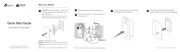
In Standalone Mode, use a computer to congure and manage the
switch.
Conguration
3. After a successful login, the main page will appear. You can click
the menus on the top side and left side to congure the
corresponding functions.
2. Enter for both the username and password in the lower admin
case letters to log in. The rst time you log in, change the
password to better protect your network and devices.
For detailed congurations, refer to the User Guide. The guides can
be found on the download center of our ocial website:
https://www.tp-link.com/support/download.
To access the management page of the switch, open a browser
and type the switch’s IP address in the address eld. Then press
the Enter key.
If the switch obtains IP address from the DHCP server
(typically a router), nd the switch’s IP address on the DHCP
server.
If not, use the default IP address to launch the 192.168.0.1
switch’s management page.
Note: Make sure the switch and computer are in the same subnet.
1.
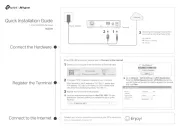
DC P er Adapterow
AC Power Cord
PoE+ Ports (1-8)
IP Camera AP IP Phone
Powered Device (PD)
Router
LAN Port WAN Port
Internet
Ethernet Ports (15)
Router
LAN PortWAN Port
Power Adapter
Internet
PC
PC


Produkt Specifikationer

Mærke: TP-Link
Kategori: Ikke kategoriseret
Model: Omada ES210GP

Har du brug for hjælp?

Hvis du har brug for hjælp til TP-Link Omada ES210GP stil et spørgsmål nedenfor, og andre brugere vil svare dig


Ikke kategoriseret TP-Link Manualer

Ikke kategoriseret Manualer

Nyeste Ikke kategoriseret Manualer

MediTub

MediTub 2747 Manual

29 December 2026
LevelOne

LevelOne FVT-1102 Manual

29 December 2026
WAC Lighting

WAC Lighting L-LED820 Manual

29 December 2026
Yamazen

Yamazen SUEF-F202 Manual

29 December 2026
Delta

Delta 24T2633 Manual

29 December 2026
Delta

Delta 19824LF Manual

29 December 2026
ET2

ET2 Starburst E20114 Manual

29 December 2026
WAC Lighting

WAC Lighting LED207 Manual

29 December 2026