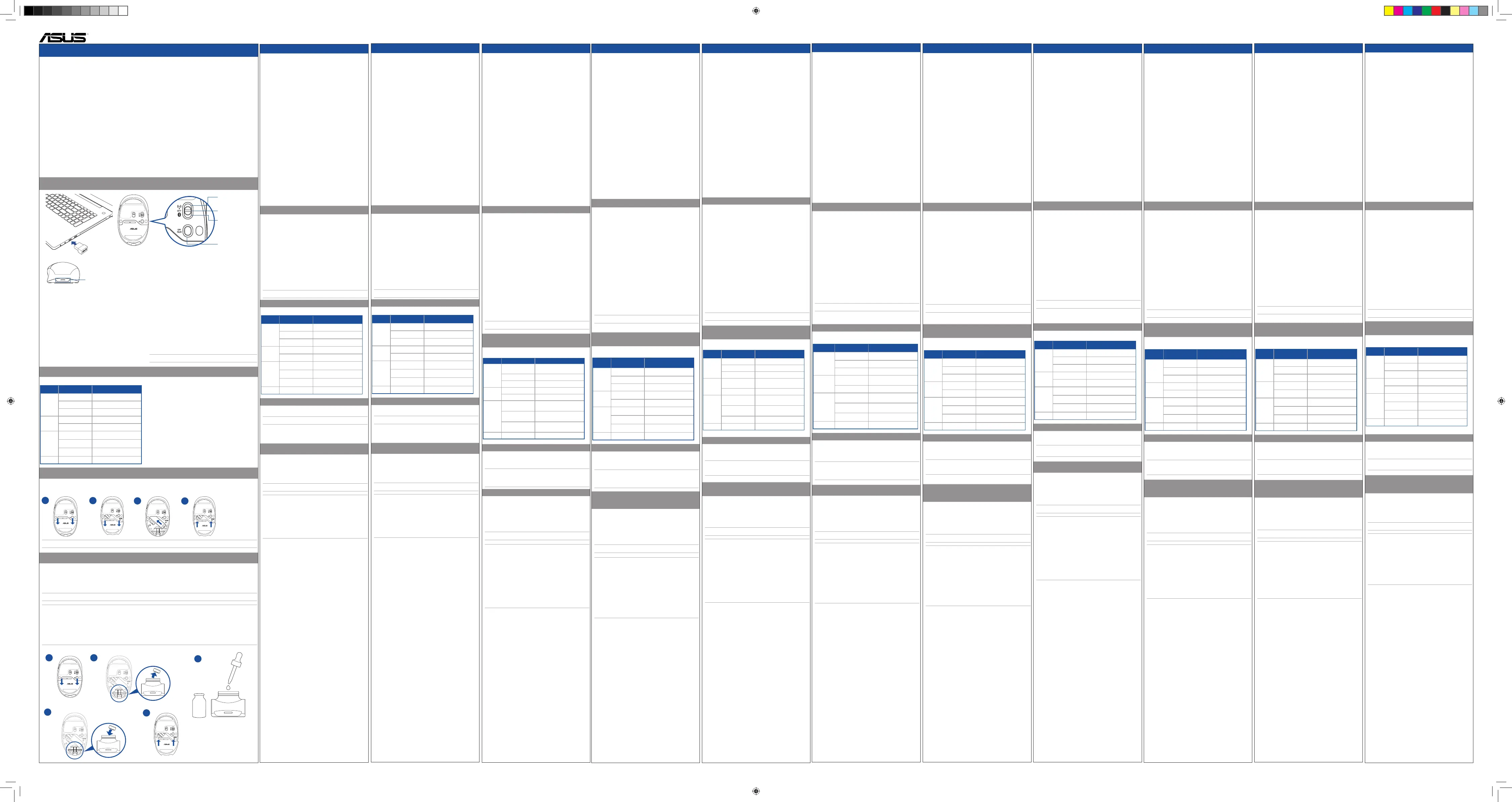
ENGLISH
Your package includes:
a. Mouse
b. Nano USB 2.4GHz receiver (stored inside the mouse)
c. 1 x AA battery
d. Quick Start Guide
e. Warranty Card
f. 1 x independent vial (stored inside the mouse)
g. 1 x dropper
Dimensions
Mouse: 103.6 mm (L) X 62.4 mm (W) X 40.2mm (H)
Dongle: 18.9 mm (L) X 12.0 mm (W) X 4.5 mm (H)
Weight
Mouse: 66g (without battery and essence oil)
Dongle: 1.6g
Rating
Mouse: 2.4GHz mode: 1.5V/50mA
Bluetooth mode: 1.5V/50mA
Dongle: 5V/100mA
Hardware Version
Mouse: GFSK / Bluetooth: V01
Dongle: GFSK: V01
System Requirements
Windows 10 or above / Chrome OS
Operating Temperature
0 ~ 40°C
Operating Humidity
20 ~ 85%
Storage Tempterature
-40 ~ 60°C
Storage Humidity
20 ~ 95%
UKCA RF Output table
Frequency Band
Mouse: 2.4GHz mode: 2403-2473MHz
Bluetooth mode: 2402-2480MHz
Dongle: 2403-2473MHz
Maximum output power(EIRP)
Mouse: 2.4GHz mode: 0.78dbm
Bluetooth mode: 1.26dbm
Dongle: 0.44dbm
CE RED RF Output table
Frequency Band
Mouse: 2.4GHz mode: 2403-2473MHz
Bluetooth mode: 2402-2480MHz
Dongle: 2403-2473MHz
Maximum output power(EIRP)
Mouse: 2.4GHz mode: 0.78dbm
Bluetooth mode: 1.26dbm
Dongle: 0.44dbm
Connecting to PC
DPI button / Pairing button
2.4GHz mode
Bluetooth mode
Power off
Low battery / DPI /
Connection channel indicator
Via 2.4GHz:
1. Slide the power switch to 2.4GHz Mode.
2. Insert the Nano USB receiver into an avialable USB port on your
PC.
3. When successfully paired to your PC, the Connection channel
indicator will light up green and then turn off.
Via Bluetooth:
1. Slide the switch to Bluetooth Mode.
2. Press the pair button for over 3 seconds to activate the Bluetooth
pairing mode. (The indicator will ash blue rapidly)
3. On Windows, right-click the Bluetooth icon on the right of the task
bar (or double-click the Bluetooth icon in the Control Panel), then
click Add a device > ASUS MD101 > Finish.
4. When successfully connected, the indicator will stop ashing and
remain in blue light for several seconds before it fades off. Once
the mouse is set up on your PC, it will automatically connect to
your PC the next time you turn to Bluetooth mode.
NOTE: The mouse supports Bluetooth 5.3.
Adjusting DPI and Understanding LED Indications
To change the DPI, press the DPI button. Please refer to the following table for LED indications.
LED color
Duration
Description
White
Blink Once
DPI set to 1200 (default)
Blink Twice
DPI set to 1600
Blink Three Times
DPI set to 2400
Green
Slow Flashing
Awaiting dongle connection
Constantly On
Dongle connected
Blue
Slow Flashing
Awaiting Bluetooth connection
Rapid Flashing
Bluetooth pairing mode on
Constantly On
Bluetooth connected
Red
Continuous Flashing
Battery level below 20%
Replacing the Battery
Replace the battery when the indicator ashes red, indicating that the mouse’s battery level is below 20%. You can check the battery percentage under
Bluetooth mode by going to the Bluetooth settings panel on the connected PC.
1
2
3
4
CAUTION: RISK OF EXPLOSION IF BATTERY IS REPLACED BY AN INCORRECT TYPE. DISPOSE OF USED BATTERIES ACCORDING TO THE INSTRUCTIONS.
Experiencing Scent Diffusion with Your Mouse
To experience scent diffusinon with your mouse:
1. Remove the battery cover from your mouse.
2. Take out the independent vial and then remove its silicon lid.
3. Use the bundled dropper to suck out your preferred essential oil and drop it into the vial.
4. Put back the silicon lid and store the vial in the mouse.
5. Install the battery cover on your mouse.
NOTE: The essential oil is purchased seperately.
CAUTION:
• You can add a few drops of the essential oil into the vial for the rst time. Ensure that the essential oil is fully absorbed before adding more.
• To prevent leakage, do not overll the vial with the essential oil.
• To prevent leakage,
do not squeeze the vial when lled with the essential oil.
• Do not drop the mouse or vial.
Doing so
may damage the aroma stone inside the vial and cause leakage.
• Do not use 100% pure essential oils.
• Select essential oils designed for reed diffusers, ultrasonic diffusers, and aroma stones.
Q26030 / Revised Edition V2 / February 2025
MD101 Mouse
Mouse Model Name: MD101 /滑鼠型號: MD101 (TC) / 鼠標型號: MD101 (SC) / Modellname der Maus: MD101 (DE) / Nome modello mouse: MD101 (IT) / Modèle de souris : MD101 (FR)/ Модель мыши: MD101 (RU) /Naam muismodel: MD101 (NL) / 마우스 모델 이름: MD101 (KO) / Nombre del modelo de ratón: MD101 (ES) / Denumire model mouse: MD101 (RO) /
: MD101 (TH) / Ime modela miške: MD101 (SL) / Egér típusnév: MD101 (HU) / Назва моделі миші: MD101 (UA) /
רבכעה םגד םש
: MD101 (HB) / Mouse Model Adı: MD101 (TR) / Názov modelu myši: MD101 (SK) / Nazwa modelu myszy: MD101 (PL) / Nome de modelo do rato: MD101 (PT) / Název modelu myši: MD101 (CZ) / マウスモデル名: MD101 (JP)
Dongle Model Name: MD101-D / 接收器型號: MD101-D (TC) / 接收器型號: MD101-D (SC) / Modellname der Maus: MD101 (DE)/ Nome modello dongle: MD101-D (IT) / Modèle de dongle : MD101-D (FR) / Модель приемника: MD101-D (RU) / Naam dongle-model: MD101 -D (NL) / 동글 모델 이름: MD101-D (KO) / Nombre del modelo de la llave: MD101-D (ES) / Denumire model dongle: MD101-D (RO) / : MD101-D (TH) / Ime modela zaščitnega ključa: MD101-D (SL) / Dongle típusnév: MD101-D (HU) / Назва моделі ключа: MD101-D (UA) /
גאלפה םגד םש
: MD101-D (HB) /Dongle Model Adı: MD101-D (TR) / Názov modelu pamäťového kľúča: MD101-D (SK) / Nazwa modelu klucza sprzętowego: MD101-D (PL) / Nome de modelo do adaptador:
MD101-D (PT) / Název modelu adaptéru dongle: MD101-D (CZ) / ドングルモデル名: MD101-D (JP)
2
3
1
4
5
ITALIANO
Contenuto della confezione:
a. Mouse
b. Ricevitore Nano USB 2.4GHz (memorizzato all’interno del mouse)
c. 1 x Batteria AA
d. Guida rapida
e. Certicato di garanzia
f. 1 x aconcino indipendente (all’interno del mouse)
g. 1 x contagocce
Dimensioni
Mouse
: 103.6 mm (L) X 62.4 mm (P) X 40.2mm (A)
Dongle
: 18.9 mm (L) X 12.0 mm (P) X 4.5 mm (A)
Peso
Mouse
: 66g (senza batteria e olio essenziale)
Dongle
: 1.6g
Specifiche
Mouse
:
Modalità 2.4GHz
: 1.5V/50mA
Modalità Bluetooth
: 1.5V/50mA
Dongle
: 5V/100mA
Versione hardware
Mouse
: GFSK / Bluetooth: V01
Dongle: GFSK: V01
Requisiti di sistema
Windows 10
o versioni successive
/ Chrome OS
Temperatura di esercizio
0 ~ 40°C
Umidità di esercizio
20 ~ 85%
Temperatura di non utilizzo
-40 ~ 60°C
Umidità di non utilizzo
20 ~ 95%
Collegamento al PC
Tramite 2,4GHz:
1. Far scorrere l’interruttore di alimentazione sulla modalità 2,4
GHz.
2. Inserite il ricevitore Nano USB in una porta USB disponibile del
PC.
3. Ad associazione al PC avvenuta L’indicatore del canale di
connessione si accende in verde e poi si spegne.
Tramite Bluetooth:
1. Far scorrere l’interruttore sulla modalità Bluetooth.
2. Premere il tasto di associazione per oltre 3 secondi per attivare
la modalità di associazione Bluetooth. (L’indicatore lampeggia
rapidamente in blu)
3. In Windows cliccate con il tasto destro sull’icona Bluetooth nella
parte destra della barra delle applicazioni (o fate doppio click
sull’icona Bluetooth nel Pannello di controllo) con un mouse
collegato al PC, quindi cliccate su Add a device (Aggiungi un
dispositivo) > ASUS MD101 > Finish (Fine).
4. Una volta effettuata la connessione corretta, l’indicatore cessa
di lampeggiare e rimane illuminato in blu per diversi secondi
prima di scomparire. Una volta che il mouse è congurato sul
PC, si connette automaticamente al PC la prossima volta che si
passa alla modalità Bluetooth.
NOTA: Il mouse supporta gli standard Bluetooth 5.3.
Regolazione DPI e comprensione delle
indicazioni LED
Per cambiare i DPI, premere il tasto DPI. Fare riferimento alla seguente
tabella per le indicazioni LED.
Colore
LED
Durata
Descrizione
Bianco
Lampeggia una volta
DPI impostato su 1200
(predenito)
Lampeggia due volte
DPI impostato su 1600
Lampeggia tre volte
DPI impostato su 2400
Verde
Lampeggio lento
In attesa di connessione del
dongle
Costantemente
acceso
Dongle collegato
Blu
Lampeggio lento
In attesa di connessione del
Bluetooth
Lampeggio rapido
Modalità di associazione
Bluetooth attiva
Costantemente
acceso
Bluetooth collegato
Rosso
Lampeggio continuo
Livello batteria inferiore al 20%
Sostituzione della batteria
Sostituire la batteria quando l’indicatore lampeggia in rosso,
indicando che il livello della batteria del mouse è inferiore al 20%. È
possibile controllare la percentuale della batteria in modalità Bluetooth
accedendo al pannello delle impostazioni Bluetooth sul PC connesso.
ATTENZIONE: RISCHIO DI ESPLOSIONE SE LA BATTERIA È SOSTITUITA
CON UNA DI UN ALTRO TIPO NON COMPATIBILE. SMALTITE
LE BATTERIE USATE ATTENENDOVI ALLE ISTRUZIONI
FORNITE DAL PRODUTTORE.
Sperimentare Diffusione profumi con il
mouse
Per sperimentare la diffusione di profumi con il mouse:
1. Rimuovere il coperchio della batteria dal mouse.
2. Estrarre il aconcino indipendente, quindi rimuovere il relativo coperchio
in silicone.
3. Utilizzare il contagocce in dotazione per aspirare l’olio essenziale
preferito e versarlo nel aconcino.
4. Rimettere il coperchio in silicone e conservare il aconcino nel mouse.
5. Installare il coperchio della batteria sul mouse.
NOTA: L’olio essenziale è acquistato separatamente.
ATTENZIONE:
• È possibile aggiungere alcune gocce di olio essenziale nel aconcino
per la prima volta. Assicurarsi che l’olio essenziale sia completamente
assorbito prima di aggiungerne altro.
• Per evitare perdite, non riempire eccessivamente il aconcino con
l’olio essenziale.
• Per evitare perdite, non schiacciare il aconcino quando è piena di
olio essenziale.
• Non far cadere il mouse o la ala. Ciò potrebbe danneggiare la pietra
aromatica all’interno del aconcino e causare perdite.
• Non utilizzare oli essenziali puri al 100%.
• Selezionare oli essenziali progettati per diffusori per ambiente, diffusori
a ultrasuoni e pietre aromatiche.
> >
•
•
•
•
•
•
한국어
패키지 내용물:
a. 마우스
b. Nano USB 2.4 GHz 수신기 (마우스 내부에 보관함)
c. AA 배터리 1개
d. 빠른 시작 안내서
e. 보증서
f. 개별 바이알 x 1 (마우스 내부 장착)
g. 드롭퍼 x 1
치수
마우스: 103.6 mm (L) X 62.4 mm (W) X 40.2mm (H)
동글: 18.9 mm (L) X 12.0 mm (W) X 4.5 mm (H)
무게
마우스: 66g (배터리와 에센스 오일 미포함)
동글: 1.6g
정격
마우스: 2.4GHz 모드: 1.5V/50mA
블루투스 모드: 1.5V/50mA
동글: 5V/100mA
하드웨어 버전
마우스: GFSK / 블루투스: V01
동글: GFSK: V01
시스템 요구 사항
윈도우 10 또는 그 이상 / Chrome OS
작동 온도
0 ~ 40°C
작동 습도
20 ~ 85%
보관 온도
-40 ~ 60°C
보관 습도
20 ~ 95%
PC에 연결하기
2.4GHz를 통해:
1. 전원 스위치를 2.4GHz 모드로 밉니다.
2. Nano USB 수신기를 PC의 사용 가능한 USB 포트에 끼웁니다.
3. PC에 성공적으로 페어링될 경우 연결 채널 표시등이 녹색으로
켜졌다가 꺼집니다
블루투스를 통해:
1. 전원 스위치를 블루투스 모드로 밉니다
2. 블루투스 페어링 모드를 활성화하려면 페어링 버튼을 3초 이상
누르십시오. (표시등이 파란색으로 빠르게 깜박임)
3. 창에서 PC에 연결된 마우스를 사용하여 마우스로 작업 표시줄의
오른쪽에 있는 블루투스 아이콘을 오른쪽 클릭합니다.(또는
제어판에서 블루투스 아이콘을 두 번 클릭합니다), 그런
다음
Add a device (장치 추가) > ASUS MD101 > 마침를
클릭합니다
.
4. 성공적으로 연결되면 표시등이 깜박임을 멈추고 몇 초 동안
파란색으로 켜져 있다가 점차 희미해집니다. 마우스가 PC에
설정된 경우 다음에 블루투스 모드로 전환하면 마우스가 PC에
자동으로 연결됩니다.
참고
: 마우스는 블루투스 5.3을 지원합니다.
DPI 조정 및 LED 의미 이해하기
DPI를 변경하려면 DPI 버튼을 누릅니다. LED 표시등에 관한 내용은 다음
표를 참조해 주십시오.
LED 색 기간 설명
흰색
한 번 깜박임
DPI가 1200으로 설정됨 (기본값)
두 번 깜박임
DPI가 1600으로 설정됨
세 번 깜박임
DPI가 2400으로 설정됨
녹색
느리게 깜박임
동글 연결을 기다리는 중
지속적으로 켜짐
동글이 연결됨
파란색
느리게 깜박임
블루투스 연결을 기다리는 중
빠르게 깜박임
블루투스 페어링 모드가 켜짐
지속적으로 켜짐
블루투스이 연결됨
빨간색
연속적으로 깜박임
배터리 잔량이 20% 미만임
배터리 교체하기
표시등이 빨간색으로 깜박이면 이는 마우스 배터리 잔량이 20% 미만임을
나타냅니다.
연결된 PC에서 Bluetooth 설정으로 이동하면 Bluetooth
모드에서 배터리 잔량을 백분율로 확인할 수 있습니다.
주의 사항:
종류가 다른 배터리로 교체할 경우 폭발 위험이 있습니다. 사용한
배터리는 지침에 따라 폐기하십시오.
마우스로 향기 디퓨징 경험하기
마우스로 향기 디퓨징 사용하기:
1. 마우스의 배터리 커버를 제거합니다.
2. 개별 바이알을 꺼낸 후 실리콘 뚜껑을 제거합니다.
3. 함께 제공된 드롭퍼를 사용해 좋아하는 에센셜 오일을 바이알에
떨어뜨립니다.
4. 실리콘 리드를 다시 끼우고 바이알을 마우스에 보관합니다.
5. 마우스의 배터리 커버를 설치합니다.
참고:
에센셜 오일은 별도로 구매 가능합니다.
주의 사항:
• 처음 사용할 때에는 바이알에 에센셜 오일을 몇 방울 더 떨어뜨릴
수 있습니다. 에센셜 오일을 추가하기 전, 완전히 흡수되었는지
확인하십시오.
• 누수를 피하기 위해 에센셜 오일을 바이알에 과도하게 채우지
마십시오.
• 누수를 피하기 위해 에센셜 오일을 흡수한 바이알을 누르거나 짜내지
마십시오.
• 마우스나 바이알을 떨어뜨리지 마십시오. 마우스나 바이알을
떨어뜨리면 바이알 내부의 아로마 스톤에 손상이 가거나 누수의
원인이 될 수 있습니다.
• 100% 순수 에센셜 오일을 사용하지 마십시오.
• 리드 디퓨저, 초음파 디퓨저, 아로마 스톤과 함께 사용할 수 있는
에센셜 오일을 선택해야 합니다.
ESPAÑOL
U paquete incluye:
a. Ratón
b. Receptor Nano USB de 2,4 GHz
(guardado dentro del ratón)
c. 1 x Batería AA
d. Guía de inicio rápido
e. Tarjeta de garantía
f. 1 x Frasco independiente (guardado dentro del ratón)
g. 1 x Cuentagotas
Dimensiones
Ratón
: 103.6 mm (LA) X 62.4 mm (AN) X 40.2mm (AL)
Adaptador
: 18.9 mm (LA) X 12.0 mm (AN) X 4.5 mm (AL)
Peso
Ratón
: 66g (sin pila ni aceite esencial)
Adaptador
: 1.6g
Clasificación
Ratón
:
Modo de 2,4 GHz
: 1.5V/50mA
Modo Bluetooth
: 1.5V/50mA
Adaptador
: 5V/100mA
Versión de hardware
Ratón
: GFSK / Bluetooth: V01
Adaptador
: GFSK: V01
Requisitos del sistema
Windows 10 o superior / Chrome OS
Temperatura de funcionamiento
0 ~ 40°C
Humedad de funcionamiento
20 ~ 85%
Temperatura de almacenamiento
-40 ~ 60°C
Humedad de almacenamiento
20 ~ 95%
Conexión a un PC
A través de 2,4 GHz:
1. Desplazar el conmutador de alimentación al modo 2,4 GHz.
2. Inserte el nanorreceptor USB en un puerto USB disponible de su
PC.
3.
Cuando la asociación se realiza correctamente con su PC
, el
indicador del canal de conexión se iluminará en verde y luego se
apagará.
A través de Bluetooth:
1. Desplazar el conmutador al modo 2,4 GHz.
2. Presione el botón Asociar durante 3 segundos para activar
el modo de asociación Bluetooth. (El indicador parpadeará
rápidamente en azul)
3.
En Windows, haga clic con el botón derecho en el icono Bluetooth
situado a la derecha de la barra de tareas (o haga doble clic en el
icono Bluetooth en el Panel de control) con un mouse conectado
a su PC. A continuación, haga clic en
Add a device
(Agregar un
dispositivo)
> ASUS MD101 > Finish (
Finalizar
).
4. Cuando se conecte correctamente, el indicador dejará de
parpadear y permanecerá en luz azul durante varios segundos
antes de que se apague. Una vez que el ratón esté congurado
en su PC, se conectará automáticamente a su PC la próxima vez
que cambie al modo Bluetooth.
NOTA
: El ratón es compatible las tecnologías Bluetooth 5.3.
Ajuste de PPP y comprensión de las
indicaciones LED
Para cambiar el valor de PPP, presione el botón PPP. Consulte la tabla
siguiente para obtener información sobre las indicaciones de los LED.
Color del
LED
Duración Descripción
Blanco
Parpadea una vez
PPP establecido en 1200
(Predeterminado)
Parpadea dos veces
PPP establecido en 1600
Tres parpadeos
PPP establecido en 2400
Verde
Parpadeo lento
Esperando conexión de la llave
Permanentemente
encendido
Llave conectada
Azul
Parpadeo lento
Esperando conexión de la
Bluetooth
Parpadeo rápido
Modo de emparejamiento
Bluetooth activado
Permanentemente
encendido
Bluetooth conectada
Rojo
Parpadeo continuo
Nivel de batería inferior al 20 %
Cambiar los batería
Reemplace la pila cuando el indicador parpadee en rojo, indicando que
el nivel de batería del ratón está por debajo del 20%. Puede comprobar
el porcentaje de batería en modo Bluetooth accediendo al panel de
conguración Bluetooth del equipo conectado.
PRECAUCIÓN: HAY RIESGO DE EXPLOSIÓN SI LAS PILAS SE CAMBIAN POR
OTRAS DE TIPO INADECUADO. DESHÁGASE DE LAS PILAS
USADAS DE ACUERDO CON LAS INSTRUCCIONES.
Experimente la difusión de aromas con
su ratón
Para experimentar la difusión de aromas con su ratón:
1. Retire la tapa de las pilas del ratón.
2. Saque el frasco independiente y, a continuación, retire su tapa de
silicona.
3. Utilice el cuentagotas incluido para aspirar su aceite esencial preferido
y viértalo en el frasco.
4. Vuelva a colocar la tapa de silicona y guarde el frasco en el ratón.
5. Instale la tapa de las pilas en el ratón.
NOTA
: El aceite esencial se compra por separado.
PRECAUCIÓN:
• Puede agregar unas pocas gotas del aceite esencial en el frasco
para la primera vez. Asegúrese de que el aceite esencial se absorbe
completamente antes de agregar más.
• Para evitar fugas, no llene demasiado el frasco con el aceite esencial.
• Para evitar fugas, no apriete el frasco relleno con el aceite esencial.
• No deje caer el ratón ni el frasco. Si lo hace, podría dañar la piedra
aromática del interior del frasco y provocar fugas.
• No utilice aceites esenciales 100 % puros.
• Seleccione aceites esenciales diseñados para difusores de
varillas, difusores ultrasónicos y piedras aromáticas.
ROMANIAN
Pachetul dvs include:
a. Mouse wireless
b. Receptor Nano USB de 2.4 GHz
(stocat în interiorul mouse-ului)
c. 1 x baterie AA
d. Ghid de pornire rapidă
e. Certicat de garanţie
f. 1 olă independentă (depozitată în interiorul mouse-ului)
g. 1 pipetă
Dimensiuni
Mouse: 103.6 mm (L) X 62.4 mm (W) X 40.2mm (H)
Receptor USB: 18.9 mm (L) X 12.0 mm (W) X 4.5 mm (H)
Greutate
Mouse: 66g (fără baterie și ulei esențial)
Receptor USB: 1.6g
Valori consum curent
Mouse: Modul 2.4GHz: 1.5V/50mA
Modul Bluetooth: 1.5V/50mA
Receptor USB: 5V/100mA
Versiune hardware
Mouse: GFSK / Bluetooth: V01
Receptor USB: GFSK: V01
Cerințe de sistem
Windows 10 sau o versiune ulterioară / Chrome OS
Temperatură de funcţionare
0 ~ 40°C
Umiditatea de funcționare
20 ~ 85%
Temperatură de depozitare
-40 ~ 60°C
Umiditatea de depozitare
20 ~ 95%
Conectarea la PC
Prin conexiunea de 2,4 GHz:
1. Glisați întrerupătorul de alimentare la modul 2,4 GHz.
2. Inseraţi receptorul Nano USB într-un port USB disponibil.
3. După conectarea cu succes la PC-ul dvs, Indicatorul canalului de
conexiune se va aprinde verde și apoi se va stinge.
Prin conexiunea Bluetooth:
1. Glisați comutatorul la modul Bluetooth.
2. Apăsați butonul de asociere timp cel puțin 3 secunde pentru a
activa modul de asociere Bluetooth. (indicatorul se va aprinde
intermitent rapid cu albastru)
3. În Windows, faceţi clic dreapta pe pictograma Bluetooth din
dreapta barei de activităţi (sau faceţi dublu clic pe pictograma
Bluetooth din Panou de control), faceţi clic pe
Add a device
(Adăugaţi un dispozitiv)
>
ASUS
MD101
>
Finish (Termina)
.
4. Când este conectat cu succes, indicatorul nu va mai clipi și va
rămâne aprins albastru timp de câteva secunde înainte de a se
opri. Odată ce mouse-ul este congurat pe computer, acesta se
va conecta automat la computer următoarea dată când activați
modul Bluetooth.
NOTĂ
: Mouse-ul acceptă Bluetooth 5.3.
Reglarea DPI și înțelegerea indicațiilor
LED
Pentru a schimba rezoluția DPI, apăsați pe butonul DPI. Consultați
tabelul următor pentru indicațiile indicatorului LED.
Culoare
LED
Durată Descriere
Alb
Clipește o dată
DPI setat la 1200 (Implicit)
Clipește de două ori
DPI setat la 1600
Clipește de trei ori
DPI setat la 2400
Verde
Clipire lentă
Se așteaptă conectarea unității
dongle
În mod constant
pornit
Unitate dongle conectată
Albastru
Clipire lentă Se așteaptă conectarea Bluetooth
Clipire rapidă Mod asociere Bluetooth activat
În mod constant
pornit
Bluetooth conectată
Roșu
Clipire continua
Nivel baterie sub 20%
Înlocuirea baterie
Înlocuiți bateria atunci când indicatorul luminează intermitent în roșu,
indicând faptul că nivelul bateriei mouse-ului este sub 20%. Puteți verica
procentajul bateriei în modul Bluetooth accesând panoul de setări Bluetooth
pe PC-ul conectat.
ATENŢIE
: RISC DE EXPLOZIE DACĂ BATERIA ESTE ÎNLOCUITĂ CU
UNA DE TIP INCORECT. ARUNCAŢI BATERIILE UZATE ÎN
CONFORMITATE CU INSTRUCŢIUNILE.
Bucurați-vă de difuzarea aromelor cu
ajutorul mouse-ului
Pentru a vă bucura de difuzarea aromelor cu ajutorul mouse-ului:
1. Scoateți capacul compartimentului bateriilor de pe mouse.
2. Scoateți ola independentă și îndepărtați-i capacul de silicon.
3. Utilizați pipeta inclusă pentru a extrage uleiul esențial preferat și picurați-l
în olă.
4. Puneți înapoi capacul de silicon și depozitați ola în mouse.
5. Instalați capacul compartimentului bateriilor pe mouse.
NOTĂ
: Uleiul esențial este comercializat separat.
ATENŢIE:
• Puteți adăuga câteva picături de ulei esențial în olă pentru prima dată.
Asigurați-vă că uleiul esențial este absorbit complet înainte de a adăuga
mai mult.
• Pentru a preveni scurgerea, nu umpleți excesiv ola cu ulei esențial.
• Pentru a preveni scurgerea, nu strângeți ola când este umplută cu
ulei esențial.
• Nu scăpați pe jos mouse-ul sau ola. În caz contrar, piatra parfumată
din interiorul olei se poate deteriora și se poate produce scurgerea.
• Nu utilizați uleiuri esențiale cu puritate 100%.
• Selectați uleiuri esențiale concepute pentru difuzoare cu bețigașe,
pentru difuzoare cu ultrasunete și pentru pietre parfumate.
NEDERLANDS
De verpakking bevat:
a. Muis
b. Nano usb 2,4 GHz-ontvanger (in de muis opgeborgen)
C 1 AA-batterij
d. Beknopte handleiding
e. Garantiekaart
f. 1 x onafhankelijke ool (in de muis opgeborgen)
g. 1 x druppelaar
Afmetingen
Muis: 103.6 mm (L) X 62.4 mm (B) X 40.2mm (H)
Dongle: 18.9 mm (L) X 12.0 mm (B) X 4.5 mm (H)
Gewicht
Muis: 66g (zonder batterij en reukolie)
Dongle: 1.6g
Klasse
Muis: 2.4GHz-modus: 1.5V/50mA
Bluetooth-modus: 1.5V/50mA
Dongle: 5V/100mA
Hardwareversie
Muis: GFSK / Bluetooth: V01
Dongle: GFSK: V01
Systeemvereisten
Windows 10 of hoger / Chrome OS
Gebruikstemperatuur
0 ~ 40°C
Bedrijfsvochtigheid
20 ~ 85%
Opslagtemperatuur
-40 ~ 60°C
Opslagvochtigheid
20 ~ 95%
Verbinding maken met de pc
Via 2.4 GHz:
1. Schuif de voedingsschakelaar naar de 2.4 GHz-modus.
2. Steek de Nano usb-ontvanger in een beschikbare usb-
aansluiting.
3. Als de muis met de pc gepaard is, de indicator van het
verbindingskanaal zal groen oplichten en dan doven.
Via Bluetooth:
1. Schuif de schakelaar naar de Bluetooth-modus.
2. Druk op de koppelingsknop langer dan 3 seconden ingedrukt om
de Bluetooth-koppelingsmodus te activeren. (De indicator zal
snel blauw knipperen)
3. Onder Windows klikt u op het Bluetooth-pictogram aan de
rechterkant van de taakbalk. (of op het Bluetooth-pictogram in
het Conguratiescherm), klik daarna op Add a device (Apparaat
toevoegen) > ASUS MD101 > Finish (Voltooien).
4. ij een gelukte verbinding, de indicator zal stoppen met knipperen
en blauw opgelicht blijven gedurende meerdere seconden
voordat het vervaagt. Zodra de muis is ingesteld op uw pc, zal
deze automatisch verbinding maken met uw pc wanneer u de
Bluetooth-modus de volgende keer inschakelt.
OPMERKING: De muis ondersteunt zowel Bluetooth 5.3.
DPI aanpassen en LED-indicators
begrijpen
Om de DPI te vervangen druk je op de DPI-knop. Zie de volgende tabel
voor uitleg van de leds.
Led-kleur Duur Omschrijving
wit
Knippert eenmaal DPI ingesteld op 1200
(Standaard)
Knippert tweemaal
DPI ingesteld op 1600
Knippert driemaal
DPI ingesteld op 2400
Groen
Langzaam
knipperend
Wachten op dongle-verbinding
Altijd aan Dongle aangesloten
Blauw
Langzaam
knipperend
Wachten op Bluetooth-verbinding
Snel knipperen Bluetooth-koppelingsmodus aan
Altijd aan Bluetooth aangesloten
Rood
Continu knipperend
Batterijniveau lager dan 20%
De schakelaars vervangen
Vervang de batterij wanneer de indicator rood knippert,
wat
aangeeft dat het batterijniveau van de muis lager is dan 20%. Je kunt de
ladingstoestand van de batterij bekijken in de Bluetooth-stand. Ga naar de
Bluetooth-instellingen op de aangesloten pc.
VOORZICHTIG: EXPLOSIEGEVAAR ALS DE BATTERJI VERVANGEN WORDT
DOOR EEN ONJUIST TYPE. VERWIJDER LEGE BATTERIJEN
VOLGENS DE INSTRUCTIES.
Ervaar geurverspreiding met je muis
Geurverspreiding met je muis ervaren:
1. Verwijder het batterijklepje van de muis.
2. Verwijder het onafhankelijke ooltje en het siliconedeksel.
3. Zuig met de meegeleverde druppelaar de gewenste essentiële olie en
laat een druppel in het ooltje vallen.
4. Doe het siliconedeksel dicht en doe het ooltje in de muis.
5. Sluit het batterijdeksel van de muis.
OPMERKING: De reukolie wordt apart verkocht.
VOORZICHTIG:
• Je kunt de eerste keer een paar druppels reukolie in het ooltje
toevoegen. Controleer of de reukolie volledig geabsorbeerd is voordat je
meer toevoegt.
• Om lekkage te voorkomen, mag het ooltje niet te ver met reukolie
gevold worden.
• Om lekkage te voorkomen, mag je niet in het ooltje knijpen als het
met reukolie gevuld is.
• Laat de muis of het ooltje niet vallen. Je zou er de aromasteen in de
ool mee beschadigen en lekkage veroorzaken.
• Gebruik niet 100% pure reukolie.
• Gebruik reukolie die bedoeld is voor rietverdampers, ultrasone
verdampers en aromastenen.
РУССКИЙ
В комплект входят:
a. Мышь
b. USB-приемник 2,4 ГГц (хранится внутри мыши)
c. 1 батарейка типа АА
d. Краткое руководство
e. Гарантийный талон
f. 1 x съемный флакон (хранится внутри мыши)
g. 1 x пипетка
Размеры
Мышь: 103,6 мм (Д) X 62,4 мм (Ш) X 40,2 мм (В)
Приемник: 18,9 мм (Д) X 12 мм (Ш) X 4,5 мм (В)
Вес
Мышь: 66 г (без батарейки и эфирного масла)
Приемник: 1,6 г
Параметры
Мышь: режим 2,4 ГГц: 1,5 В / 50 мА
Режим BLUETOOTH: 1,5 В / 50 мА
Приемник: 5 В / 100 мА
Аппаратная версия
Мышь: GFSK / Bluetooth: V01
Приемник: GFSK: V01
Системные требования
Windows 10 или выше / ОС Chrome
Рабочая температура
0 ~ 40°C
Рабочая влажность
20 ~ 85%
Температура хранения
-40 ~ 60°C
Влажность хранения
20 ~ 95%
Подключение к ПК
Через 2,4 ГГц:
1. Переместите тумблер питания в режим 2,4 ГГц.
2. Подключите USB-приемник к свободному порту USB
компьютера.
3. После успешного сопряжения с компьютером индикатор
режима подключения загорится зеленым, затем погаснет.
Через Bluetooth:
1. Установите переключатель в режим Bluetooth.
2. Нажмите и удерживайте кнопку сопряжения более 3 секунд
для активации режима сопряжения Bluetooth. (Индикатор
будет быстро мигать синим цветом)
3. В Windows щелкните правой кнопкой по иконке Bluetooth
справа от панели задач (или дважды щелкните по иконке
Bluetooth на панели управления), затем нажмите Добавить
устройство > ASUS MD101 > «Готово».
4. Как только мышь будет установлена на вашем ПК, она
автоматически подключится к вашему компьютеру при
следующем включении режима Bluetooth.
ПРИМЕЧАНИЕ: Мышь поддерживает Bluetooth 5.3.
Настройка DPI и индикация
Для изменения разрешения сенсора нажмите кнопку DPI.
Индикация светодиодов приведена в следующей таблице.
Цвет
индикатора
Продолжительность Описание
Белый
Мигает один раз
DPI установлено на 1200 (по
умолчанию)
Мигает дважды
DPI установлено на 1600
Мигает трижды
DPI установлено на 2400
Зеленый
Медленно мигает
Ожидание подключения
приемника
Горит Приемник подключен
Синий
Медленно мигает
Ожидание подключения
Bluetooth
Быстро мигает
Включен режим сопряжения
Bluetooth
Горит Bluetooth подключен
Красный
Мигает
Батарея разряжена ниже 20%
Замена батареи
Замените батарейку, когда индикатор начнет мигать красным,
указывая на то, что батарейка разряжена ниже 20%. Можно
проверить процент заряда батарейки в режиме Bluetooth, перейдя в
панель настроек Bluetooth на подключенном компьютере.
ОСТОРОЖНО: ПРИ УСТАНОВКЕ АККУМУЛЯТОРА
НЕСООТВЕТСТВУЮЩЕГО ТИПА ВОЗМОЖЕН ВЗРЫВ.
УТИЛИЗИРУЙТЕ ИСПОЛЬЗОВАННЫЙ АККУМУЛЯТОР В
СООТВЕТСТВИИ С ИНСТРУКЦИЯМИ ПРОИЗВОДИТЕЛЯ.
Использование аромадиффузора
Чтобы использовать встроенный ароматический диффузор:
1. Снимите крышку батарейного отсека с устройства.
2. Извлеките флакон и снимите с него силиконовую крышку.
3. Используйте прилагаемую пипетку, чтобы набрать желаемое
эфирное масло и капнуть его во флакон.
4. Закройте силиконовую крышку и поместите флакон обратно в
устройство.
5. Установите крышку батарейного отсека на место.
ПРИМЕЧАНИЕ: Эфирное масло приобретается отдельно.
ОСТОРОЖНО:
• При первом использовании добавьте несколько капель эфирного
масла во флакон. Убедитесь, что масло полностью впиталось,
прежде чем добавлять больше.
• Чтобы избежать утечек, не переполняйте флакон эфирным
маслом.
• Чтобы избежать утечек, не сжимайте флакон, когда он наполнен
эфирным маслом.
• Не роняйте устройство или флакон. Это может повредить
ароматический камень внутри флакона и привести к утечке.
• Не используйте 100% чистые эфирные масла.
• Выбирайте эфирные масла, предназначенные для тростниковых
диффузоров, ультразвуковых диффузоров и ароматических камней.
繁體中文
包裝內容物:
a. 滑鼠
b. Nano USB 2.4GHz 接收器(收納於滑鼠內)
c. 1 x 三號(AA)電池
d. 快速使用指南
e. 保固卡
f. 1 x 獨立的小瓶(收納於滑鼠內)
g. 1 x 滴管
尺寸
滑鼠: 103.6 公釐(長)X 62.4 公釐(寬)X 40.2 公釐(高)
接收器: 18.9 公釐(長)X 12.0 公釐(寬)X 4.5 公釐(高)
重量
滑鼠:66 克(不含電池和精油)
接收器:1.6 克
額定功率
滑鼠:2.4GHz 模式:1.5V/50mA
藍牙模式:1.5V/50mA
接收器:5V/100mA
硬體版本
滑鼠:GFSK / 藍牙:V01
接收器:GFSK: V01
系統需求
Windows 10 作業系統及以上版本 / Chrome OS
運作溫度
0 ~ 40°C
運作濕度
20 ~ 85%
儲存溫度
-40 ~ 60°C
儲存濕度
20 ~ 95%
連線至電腦
透過 2.4GHz:
1. 將電源開關推至 2.4GHz 模式。
2. 將 Nano USB 接收器插入到電腦上可用的 USB 連接埠中。
3. 當與電腦成功配對後, 連線頻道指示燈將先亮起綠光然後熄滅。
透過藍牙:
1. 將電源開關推至藍牙模式。
2. 長按配對按鈕超過 3 秒鐘, 以開啟藍牙配對模式 (指示燈會快速
閃爍藍光)。
3. 在 Windows 系統中, 右鍵點選工具列中的藍牙圖示 (或在控制
台中雙點擊藍牙圖示), 然後點選 新增藍牙或其他裝置 > A SUS
MD101 > 完成。
4. 完成後, 指示燈將停止閃爍並亮起藍光, 數秒後熄滅。 在滑鼠首次
連線到電腦後, 下次當您開啟藍牙模式時, 滑鼠將自動連線到您的
電腦。
注 意: 滑鼠支援藍牙 5.3。
DPI 調整與 LED 指示燈說明
若需調整 DPI 設定, 請按下 DPI 按鈕。 關於 LED 指示燈說明請參考下表。
LED 顏色
狀態
說明
白色
閃爍一次
DPI 已設定為 1200(預設)
閃爍兩次
DPI 已設定為 1600
閃爍三次
DPI 已設定為 2400
綠色
緩慢閃爍
等待與接收器連線
恆亮
已與接收器連線
藍色
緩慢閃爍
等待藍牙連線
快速閃爍
已開啟藍牙配對模式
恆亮
已透過藍牙連線
紅色
持續閃爍
電量低於 20%
更換電池
當指示燈閃爍紅光時, 說明滑鼠電量已低於 20%, 請及時更換電池。 您可以
至所連線電腦的 「藍牙」 設定面板, 檢視藍牙模式下的電池百分比。
小 心: 電池型號不正確可能會導致爆炸。 請依照說明處理使用過的電池。
透過滑鼠體驗香氛瀰漫
請依照下列步驟體驗香氛:
1.取下滑鼠的電池蓋。
2.取出獨立的小瓶, 然後取下矽膠蓋。
3. 使用隨附的滴管吸出您所偏愛的精油, 滴入小瓶中。
4.放回矽膠蓋, 將小瓶存放在滑鼠中。
5.將電池蓋裝回滑鼠。
注 意:精油需另行購買。
小 心:
• 第一次可以在小瓶中加入幾滴精油。 請確保精油完全被吸收後再添加。
• 為了防止滲漏, 請勿過量注入精油。
• 為了防止滲漏,
注入精油時, 請勿擠壓小瓶。
• 請勿掉落滑鼠或小瓶。
這樣做
可能會損毀小瓶內的芳香石, 並導致洩
漏。
• 請勿使用 100% 純度的精油。
• 選擇專為藤條香薰、 超音波擴香機和芳香石所設計的精油。
簡體中文
包裝內容物:
a. 鼠標
b. Nano USB 2.4GHz 接收器(收納於鼠標內)
c. 1 x 五號(AA)電池
d. 快速使用指南
e. 保修卡
f. 1 x 獨立的小瓶(收納於鼠標內)
g. 1 x 滴管
尺寸
鼠標: 103.6 毫米(長)X 62.4 毫米(寬)X 40.2 毫米(高)
接收器: 18.9 毫米(長)X 12.0 毫米(寬)X 4.5 毫米(高)
重量
鼠標:66 克(不含電池和精油)
接收器:1.6 克
額定功率
鼠標:2.4GHz 模式:1.5V/50mA
藍牙模式:1.5V/50mA
接收器:5V/100mA
硬件版本
鼠標:GFSK / 藍牙:V01
接收器:GFSK: V01
系統需求
Windows 10 操作系統及以上版本 / Chrome OS
運行溫度
0 ~ 40°C
運行濕度
20 ~ 85%
保存溫度
-40 ~ 60°C
保存濕度
20 ~ 95%
連接至電腦
通過 2.4GHz:
1. 將電源開關推至 2.4GHz 模式。
2. 將 Nano USB 接收器插入到電腦上可用的 USB 接口中。
3. 當與電腦成功配對後, 連接頻道指示燈將先亮起綠光然後熄滅。
通過藍 牙:
1. 將電源開關推至藍牙模式。
2. 長按配對按鈕超過 3 秒鐘, 以開啟藍牙配對模式 (指示燈會快速
閃爍藍光)。
3. 在 Windows 系統中, 右鍵點擊任務欄中的藍牙圖標 (或在控制
面板中雙點擊藍牙圖標), 然 後 點擊 【新增藍牙或其他設備】 >
【ASUS MD101】 > 【完成】。
4. 完成後, 指示燈將停止閃爍並亮起藍光, 數秒後熄滅。 在鼠標首次
連接到電腦後, 下次當您開啟藍牙模式時, 鼠標將自動連接到您的
電腦。
注意: 鼠標支援藍牙 5.3。
DPI 調整與 LED 指示燈說明
若需調整 DPI 設置, 請按下 DPI 按鈕。 關於 LED 指示燈說明請參考下表。
LED 顏色
狀態
說明
白色
閃爍一次
DPI 已設置為 1200(默認)
閃爍兩次
DPI 已設置為 1600
閃爍三次
DPI 已設置為 2400
綠色
緩慢閃爍
等待與接收器連接
恆亮
已與接收器連接
藍色
緩慢閃爍
等待藍牙
連接
快速閃爍
已開啟藍牙配對模式
恆亮
已通過藍牙
連接
紅色
持續閃爍
電量低於 20%
更換電池
當指示燈閃爍紅光時, 說明鼠標電量已低於 20%, 請及時更換電池。 您可以
至所連接電腦的【藍牙】設 置 面板, 檢查藍牙模式下的電池百分比。
小心: 電池型號不正確可能會導致爆炸。 請依照說明處理使用過的電池。
通過鼠標體驗香氛瀰漫
請依照下列步驟體驗香氛:
1.取下鼠標的電池蓋。
2.取出獨立的小瓶, 然後取下硅膠蓋。
3. 使用隨附的滴管吸出您所偏愛的精油, 滴入小瓶中。
4.放回硅膠蓋, 將小瓶存放在鼠標中。
5.將電池蓋裝回鼠標。
注意:精油需另行購買。
小 心:
• 第一次可以在小瓶中加入幾滴精油。 請確保精油完全被吸收後再添加。
• 為了防止滲漏, 請勿過量注入精油。
• 為了防止滲漏,
注入精油時, 請勿擠壓小瓶。
• 請勿掉落鼠標或小瓶。
這樣做
可能會損毀小瓶內的芳香石, 並導致洩
漏。
• 請勿使用 100% 純度的精油。
• 選擇專為藤條香薰、 超音波擴香機和芳香石所設計的精油。
DEUTSCH
Im Lieferumfang sind enthalten:
a. Maus
b. Nano-USB-2,4-GHz-Empfänger (in der Maus verstaut)
c. 1 x AA Batterie
d. Schnellstartanleitung
e. Garantiekarte
f. 1 x Phiole (in der Maus verstaut)
g. 1 x Pipette
Abmessungen
Maus: 103,6 mm (L) X 62,4 mm (B) X 40,2 mm (H)
Dongle: 18,9 mm (L) X 12,0 mm (B) X 4,5 mm (H)
Gewicht
Maus: 66 g (ohne Batterie und ätherisches Öl)
Dongle: 1,6 g
Leistung
Maus: 2,4-GHz-Modus: 1,5 V / 50 mA
BLUETOOTH-MODUS: 1,5 V / 50 MA
DONGLE: 5 V / 100 MA
Hardware-Version
Maus: GFSK / Bluetooth: V01
Dongle: GFSK: V01
Systemvoraussetzungen
Windows 10 oder höher / Chrome OS
Betriebstemperatur
0 ~ 40 °C
Betriebsluftfeuchtigkeit
20 ~ 85%
Lagertemperatur
-40 ~ 60 °C
Lagerluftfeuchtigkeit
20 ~ 95%
Anschluss am PC
Per 2,4 GHz:
1. Schieben Sie den Ein-/Ausschalter in den 2,4-GHz-Modus.
2. Stecken Sie den Nano-USB-Empfänger in einen verfügbaren
USB-Anschluss Ihres PCs.
3. Wenn die Kopplung mit Ihrem PC erfolgreich verlief, leuchtet die
Anzeige des Verbindungskanals grün auf und schaltet sich dann
ab.
Per Bluetooth:
1. Schieben Sie den Schalter in den Bluetooth-Modus.
2. Drücken Sie die Koppeln-Taste länger als 3 Sekunden, um den
Bluetooth-Kopplungsmodus zu aktivieren. (Die Anzeige blinkt
schnell blau.)
3. Rechtsklicken Sie unter Windows auf das Bluetooth-Symbol
rechts in der Taskleiste (oder doppelklicken Sie auf das
Bluetooth-Symbol in der Systemsteuerung). Klicken Sie dann
auf Add a device (Gerät hinzufügen) > ASUS MD101 > Finish
(Fertigstellen).
4. Bei erfolgreicher Verbindung hört die Anzeige auf zu blinken
und bleibt einige Sekunden blau, bevor sie verblasst. Sobald die
Maus auf Ihrem PC eingerichtet ist, stellt sie automatisch eine
Verbindung zu Ihrem PC her, wenn Sie das nächste Mal in den
Bluetooth-Modus wechseln.
HINWEIS: Die Maus unterstützt Bluetooth 5.3.
DPI-Anpassung und Bedeutung der LED-
Anzeige
Um den DPI-Wert zu ändern, drücken Sie die DPI-Taste. In der folgenden
Tabelle nden Sie die Beschreibungen der LED-Anzeige.
LED-Farbe
Dauer
Beschreibung
Weiß
Blinkt einmal
DPI ist auf 1200 eingestellt
(Standard)
Blinkt zweimal DPI ist auf 1600 eingestellt
Blinkt dreimal DPI ist auf 2400 eingestellt
Grün
Blinkt langsam Warten auf Dongle-Verbindung
Leuchtet dauerhaft Dongle ist verbunden
Blau
Blinkt langsam
Warten auf Bluetooth-
Verbindung
Blinkt schnell
Bluetooth-Kopplungsmodus ist
aktiviert
Leuchtet dauerhaft
Bluetooth-Verbindung ist
hergestellt
Rot Blinkt dauerhaft Akkustand liegt unter 20%
Auswechseln der Batterie
Bitte ersetzen Sie die Batterie, wenn die Anzeige rot blinkt, was darauf
hinweist, dass der Batteriestand der Maus unter 20% liegt. Sie können den
Batteriestatus im Bluetooth-Modus oder im Bluetooth-Einstellungenfenster
auf dem verbundenen PC überprüfen.
ACHTUNG: FALLS DIE BATTERIE DURCH EINEN FALSCHEN TYP ERSETZT
WIRD, BESTEHT EXPLOSIONSGEFAHR. ENTSORGEN SIE
GEBRAUCHTE BATTERIEN ENTSPRECHEND DEN ANGABEN DES
HERSTELLERS.
Duftdiffusion mit Ihrer Maus erleben
So erleben Sie die Duftdiffusion mit Ihrer Maus:
1. Entfernen Sie die Batterieabdeckung von Ihrer Maus.
2. Nehmen Sie die Phiole heraus und entfernen Sie den Silikondeckel.
3. Entnehmen Sie mit der mitgelieferten Pipette Ihr bevorzugtes
ätherisches Öl und geben Sie es in die Phiole.
4. Setzen Sie den Silikondeckel wieder auf und verstauen Sie die Phiole in
der Maus.
5. Bringen Sie die Batterieabdeckung an Ihrer Maus an.
HINWEIS: Das ätherische Öl ist separat erhältlich.
ACHTUNG:
• Sie können zum ersten Mal ein paar Tropfen des ätherischen Öls in
die Phiole geben. Stellen Sie sicher, dass das ätherische Öl vollständig
eingezogen ist, bevor Sie mehr hinzufügen.
• Um ein Auslaufen zu vermeiden, füllen Sie nicht zu viel vom
ätherischen Öl in die Phiole.
• Um ein Auslaufen zu vermeiden, drücken Sie die Phiole nicht
zusammen, wenn sie mit dem ätherischen Öl gefüllt ist.
• Lassen Sie die Maus oder die Phiole nicht fallen. Andernfalls kann
der Aromastein im Inneren der Phiole beschädigt werden, und es
kann zu einem Auslaufen kommen.
• Verwenden Sie keine 100% reinen ätherischen Öle.
• Wählen Sie ätherische Öle aus, die für Reed-Diffusoren,
Ultraschalldiffusoren und Aromasteine entwickelt wurden.
FRANÇAIS
Contenu de la boîte :
a. Souris
b. Récepteur Nano USB 2,4 GHz (stocké à l'intérieur de la souris)
c. 1 x Pile AA d. Guide de démarrage rapide
e. Carte de garantie
f. 1 x Flacon indépendant (stocké à l'intérieur de la souris)
g. 1 x Compte-gouttes
Dimensions
Souris : 103,6 mm (L) X 62,4 mm (l) X 40,2 mm (H)
Dongle : 18,9 mm (L) X 12,0 mm (l) X 4,5 mm (H)
Poids
Souris : 66 g (sans batterie ni huile essentielle)
Dongle : 1,6 g
Tension nominale
Souris : Mode 2,4 GHz : 1,5V/50mA
Mode Bluetooth : 1,5V/50mA
Dongle : 5V/100mA
Version du matériel
Souris : GFSK / Bluetooth : V01
Dongle : GFSK - V01
Configuration requise
Windows
®
10 ou supérieur / Chrome OS
Température de fonctionnement
0 - 40°C
Humidité de fonctionnement
20 - 85%
Température de stockage
-40 - 60°C
Humidité de stockage
20 - 95%
Connexion à un ordinateur
Via RF 2,4 GHz :
1. Déplacez l'interrupteur d'alimentation sur le mode 2,4 GHz.
2. Insérez le récepteur USB nano dans un port USB disponible sur
votre ordinateur.
3. Après un appairage réussi à votre ordinateur, le voyant lumineux
du canal de connexion s'allumera brièvement (vert) avant de
s'éteindre.
Via Bluetooth :
1. Déplacez l'interrupteur sur le mode Bluetooth.
2. Appuyez sur le bouton d'appairage pendant plus de 3 secondes
pour activer le mode d'appairage Bluetooth. (Le voyant lumineux
clignotera rapidement en bleu)
3. Sous Windows, faites un clic droit sur l'icône Bluetooth situé
dans la partie droite de la barre des tâches (ou double-cliquez
sur l'icône Bluetooth du panneau de conguration), puis cliquez
sur Ajouter un périphérique > MD101 Mouse (Souris MD101) >
Terminé.
4. Une fois la connexion établie, le voyant lumineux cessera de
clignoter et restera allumé en bleu pendant plusieurs secondes
avant de s'éteindre. Une fois la souris congurée sur votre
ordinateur, elle s'y connectera automatiquement la prochaine
fois que vous passerez en mode Bluetooth.
REMARQUE : La souris prend en charge la norme Bluetooth 5.3.
Ajuster le DPI et comprendre les
indications du voyant LED
Pour modier les réglages DPI, appuyez sur le bouton DPI. Veuillez vous
référer au tableau ci-dessous pour les indications du voyant LED.
Couleur
du voyant
Durée
Description
Blanc
Clignote une fois DPI réglé sur 1200 (par défaut)
Clignote deux fois DPI réglé sur 1600
Clignote trois fois DPI réglé sur 2400
Vert
Clignotement lent
En attente de connexion au
dongle
Toujours allumé Dongle connecté
Bleu
Clignotement lent
En attente de connexion
Bluetooth
Clignotement rapide
Mode appairage Bluetooth
activé
Toujours allumé
Bluetooth connecté
Rouge Clignotement continu Niveau de batterie inférieur à 20%
Remplacer la pile
Remplacez la pile lorsque le voyant lumineux clignote en rouge, ce qui
indique que le niveau de batterie est inférieur à 20%. Vous pouvez vérier
le pourcentage de batterie en mode Bluetooth en accédant aux paramètres
Bluetooth de l'ordinateur connecté.
ATTENTION : RISQUE D'EXPLOSION SI LA PILE N'EST PAS CORRECTEMENT
REMPLACÉE. JETEZ LES PILES USAGÉES CONFORMÉMENT
AUX INSTRUCTIONS DU FABRICANT.
Profiter de la diffusion de parfums avec
votre souris
Pour profiter de la diffusion de parfums avec votre souris :
1. Retirez le couvercle de la batterie de votre souris.
2. Sortez le acon indépendant puis retirez son couvercle en silicone.
3. Utilisez le compte-gouttes fourni pour aspirer votre huile essentielle
préférée et déposez-la dans le acon.
4. Remettez le couvercle en silicone et rangez le acon dans la souris.
5. Installez le couvercle de la batterie sur votre souris.
REMARQUE : L'huile essentielle est vendue séparément.
ATTENTION :
• Vous pouvez ajouter quelques gouttes d'huile essentielle dans le
acon pour la première fois. Assurez-vous que l'huile essentielle est
complètement absorbée avant d'en ajouter davantage.
• Pour éviter les fuites, ne remplissez pas trop le acon avec l'huile
essentielle.
• Pour éviter les fuites, ne pressez pas le acon lorsqu'il est rempli
d'huile essentielle.
• Ne laissez pas tomber la souris ou le acon. Cela pourrait
endommager la pierre aromatique à l'intérieur du acon et provoquer
une fuite.
• N'utilisez pas d'huiles essentielles pures à 100%.
• Sélectionnez des huiles essentielles conçues pour les diffuseurs à
roseaux, les diffuseurs à ultrasons et les pierres aromatiques.
Q26030_MD101_Mouse_QSG_V2.indd 1
Q26030_MD101_Mouse_QSG_V2.indd 1
2025/2/24 10:34:03