Griffin AirClick USB Manual

Griffin Hi-Fi system AirClick USB

Læs gratis den danske manual til Griffin AirClick USB (2 sider) i kategorien Hi-Fi system. Denne vejledning er vurderet som hjælpsom af 18 personer og har en gennemsnitlig bedømmelse på 4.8 stjerner ud af 9.5 anmeldelser. Har du et spørgsmål om Griffin AirClick USB, eller vil du spørge andre brugere om produktet?

Side 1/2
What Do I Need?
To use AirClickUSB, you‘ll need the following:
A Macintosh running Mac OS X or
a PC running Windows XP
An available USB port
• CD-ROM Drive
What Is All This Stuff?
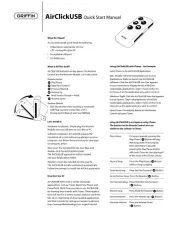
AirClick USB features two key pieces: the Remote
Control and the Receiver Module. Let‘s take a look:
Remote Control
Play/Pause
Next/Fast Forward
Previous/Rewind
Volume Up
Hold Switch (Orange = Hold)
Volume Down
Receiver Module
LED (illuminates when receiving a command)
USB Plug (connect to your Mac or PC)
Pairing Switch (Back of unit. See PAIRING)
Let‘s Install it.
Hardware Installation: Simply plug the Receiver
Module into any USB port on your Mac or PC.
Software Installation: AirClickUSB requires the
installation of a small software application on your
computer. Just follow the instructions for your type
of computer, below.
Mac: Insert the included CD into your Mac, and
double-click the AirClickUSB installer.
The AirClickUSB application will be installed
into your Applications folder.
Windows: Insert the included CD into your PC.
The AirClickUSB installer will launch automatically.
Follow the prompts to install the AirClick application.
How Do I Use It?
AirClickUSB works with a variety of popular
applications, such as iTunes, QuickTime Player, and
PowerPoint. We‘ll show you how to use AirClickUSB
by showing how it works with iTunes. Other applica-
tions will work in a similar manner, and you can fi nd a
full, up-to-date listing of all compatible applications
and their controls by visiting our Support website at:
http://www.griffi ntechnology.com/ support/airclick
Using AirClickUSB with iTunes – An Example
Select iTunes in the AirClickUSB Application
Mac: Double-Click the AirClickUSB icon in your
Applications folder to launch the AirClickUSB
software. Click the AirClickUSB icon that appears
in your menu bar to display the list of AirClick-
controllable applications. Select iTunes in this list
to choose it as the application you wish to control.
Windows: Right-Click the AirClickUSB icon that appears
in your System Tray to display the list of AirClick-
controllable applications. Select iTunes in this list to
choose it as the application you wish to control.
Open iTunes: Pressing any button on the Remote
Control will open iTunes.
Using AirClickUSB is as simple as using iTunes.
The buttons on the Remote Control are very
similar to the controls in iTunes.
Play a Song: If a song is paused, pressing the
Play/Pause ( ) Button will play
that song. Note: If no song has
been selected or is paused,
pressing the Play/Pause button
will cause iTunes to start playing all
of the music in the iTunes Library.
Pause a Song: Press the Play/Pause (
)Button
while a song is playing.
Go to Next Song: Press the Fast Forward (
) Button.
Go to Previous Song: Press the Rewind ( ) Button.
Fast Forward Song: Press/Hold the Fast Forward
( ) Button.
Rewind Song: Press/Hold the Rewind ( )Button.
Increase Volume: Press the Volume Up ( ) Button.
Decrease Volume: Press the Volume Down
( ) Button.
AirClickUSB Quick Start Manual


Produkt Specifikationer

Mærke: Griffin
Kategori: Hi-Fi system
Model: AirClick USB

Har du brug for hjælp?

Hvis du har brug for hjælp til Griffin AirClick USB stil et spørgsmål nedenfor, og andre brugere vil svare dig


Hi-Fi system Griffin Manualer
Hi-Fi system Manualer

Nyeste Hi-Fi system Manualer

Panasonic

Panasonic RQ-V77 Manual

27 December 2025
Panasonic

Panasonic RQ-CR18 Manual

27 December 2025
Sangean

Sangean DDR-55BT Manual

25 December 2025
Panasonic

Panasonic RC-60 Manual

25 December 2025
Panasonic

Panasonic RX-M40 Manual

25 December 2025
Logic

Logic SP9 Manual

25 December 2025
Panasonic

Panasonic RP-WFG20 Manual

25 December 2025
Panasonic

Panasonic RX-CW55 Manual

25 December 2025
Panasonic

Panasonic RX-CW50 Manual

25 December 2025
Panasonic

Panasonic RX-D25 Manual

25 December 2025