To reduce the risk of re, do not cover the ventilation
opening of the apparatus with newspapers, tablecloths,
curtains, etc. Do not place the naked ame sources such as
lighted candles on the apparatus.
To reduce the risk of re or electric shock, do not expose
this apparatus to dripping or splashing, and do not place
objects lled with liquids, such as vases, on the apparatus.
Do not install the appliance in a conned space, such as a
bookcase or built-in cabinet.
As the main plug is used to disconnect the unit from the
mains, connect the unit to an easily accessible AC outlet.
Should you notice an abnormality in the unit, disconnect
the main plug from the AC outlet immediately.
Do not expose batteries or apparatus with battery-installed
to excessive heat such as sunshine, re or the like.
Excessive sound pressure from earphones and headphones
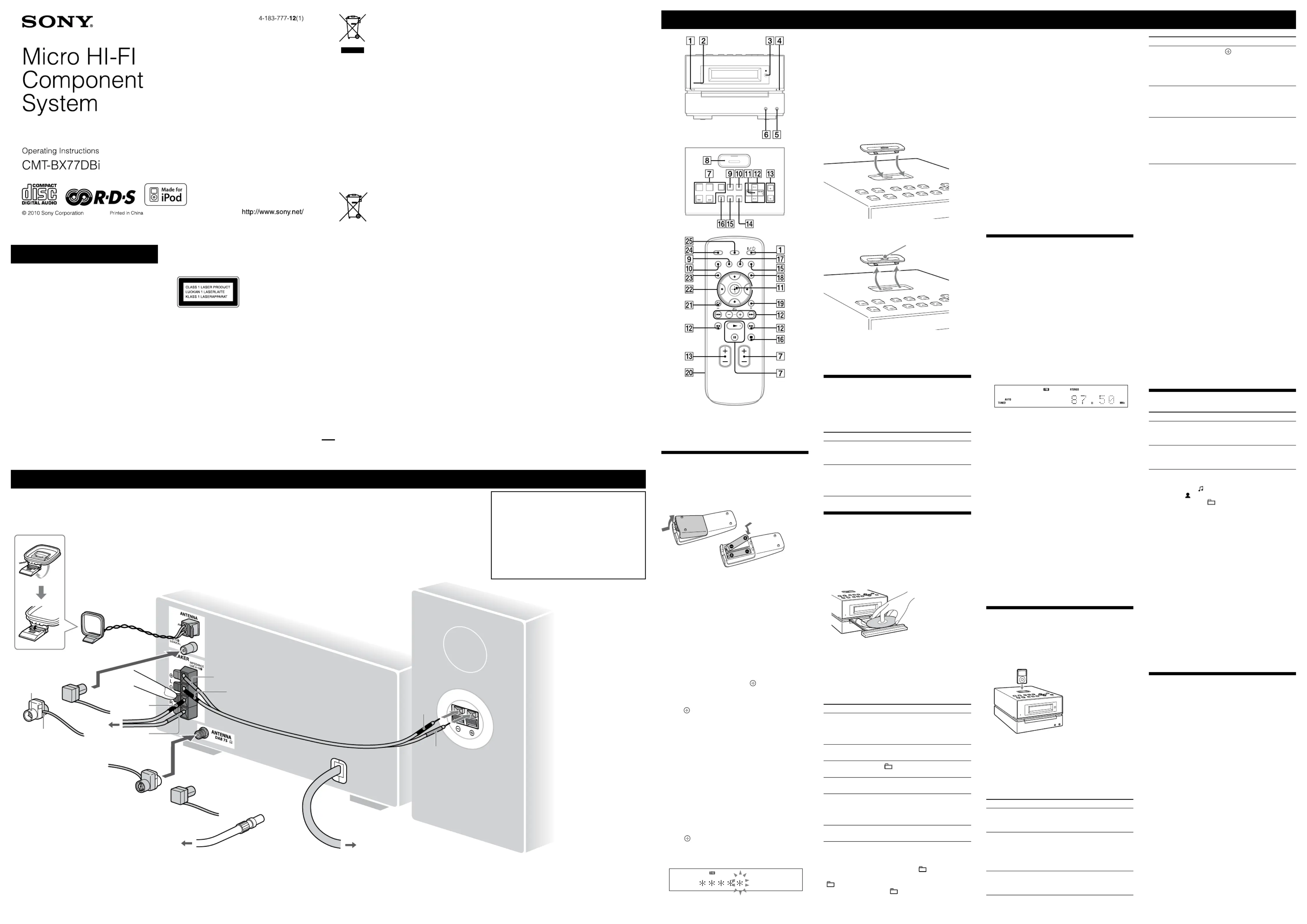
Hooking up the system securely
e use of optical instruments with this product will
is appliance is classied
Notice for customers: the following
information is only applicable
to equipment sold in countries
e manufacturer of this product is Sony Corporation,
1-7-1 Konan Minato-ku, Tokyo, 108-0075 Japan. e
Authorized Representative for EMC and product safety is
Sony Deutschland GmbH, Hedelnger Strasse 61, 70327
Stuttgart, Germany. For any service or guarantee matters,
please refer to the addresses given in separate service or
Disposal of Old Electrical &
(Applicable in the European
is symbol on the product or on its packaging indicates
that this product shall not be treated as household
waste. Instead it shall be handed over to the applicable
collection point for the recycling of electrical and
electronic equipment. By ensuring this product is
disposed of correctly, you will help prevent potential
negative consequences for the environment and human
health, which could otherwise be caused by inappropriate
waste handling of this product. e recycling of materials
will help to conserve natural resources. For more detailed
information about recycling of this product, please
contact your local Civic Oce, your household waste
disposal service or the shop where you purchased the
Applicable accessories: Remote commander
Disposal of waste batteries
(applicable in the European
is symbol on the battery or on the packaging indicates
that the battery provided with this product shall not be
treated as household waste. On certain batteries this
symbol might be used in combination with a chemical
symbol. e chemical symbols for mercury (Hg) or lead
(Pb) are added if the battery contains more than 0.0005%
By ensuring these batteries are disposed of correctly,
you will help prevent potentially negative consequences
for the environment and human health which could
otherwise be caused by inappropriate waste handling of
the battery. e recycling of the materials will help to
conserve natural resources.
In case of products that for safety, performance or data
integrity reasons require a permanent connection with an
incorporated battery, this battery should be replaced by
qualied service sta only. To ensure that the battery will
be treated properly, hand over the product at end-of-life
to the applicable collection point for the recycling of
electrical and electronic equipment.
For all other batteries, please view the section on how
to remove the battery from the product safely. Hand the
battery over to the applicable collection point for the
recycling of waste batteries.
For more detailed information about recycling of this
product or battery, please contact your local Civic Oce,
your household waste disposal service or the shop where
you purchased the product.
A DualDisc is a two sided disc product which mates
DVD recorded material on one side with digital
audio material on the other side. However, since the
audio material side does not conform to the Compact
Disc (CD) standard, playback on this product is not
Music discs encoded with copyright
is product is designed to playback discs that conform
to the Compact Disc (CD) standard. Recently, various
music discs encoded with copyright protection
technologies are marketed by some record companies.
Please be aware that among those discs, there are some
that do not conform to the CD standard and may not be
playable by this product.
License and Trademark Notice
iPod is a trademark of Apple Inc., registered in the U.S.
“Made for iPod” means that an electronic accessory
has been designed to connect specically to iPod and
has been certied by the developer to meet Apple
Apple is not responsible for the operation of this device
or its compliance with safety and regulatory standards.
MPEG Layer-3 audio coding technology and patents
licensed from Fraunhofer IIS and omson.
All other trademarks and registered trademarks are of
their respective holders. In this manual,
is manual mainly explains operations using the
remote, but the same operations can also be performed
using the buttons on the unit having the same or similar
Slide and remove the battery compartment lid
insert the two supplied R6 (size AA) batteries, side
rst, matching the polarities shown below.
Notes on using the remote
With normal use, the batteries should last for about six months.
Do not mix an old battery with a new one or mix dierent types of
If you do not use the remote for a long period of time, remove the
batteries to avoid damage from battery leakage and corrosion.
Use buttons on the remote to set the clock.
2 Select the clock set mode.
. If the current mode appears
“CLOCK SET?” and then press (enter)
repeatedly to set the hour, and then
. Use the same procedure to set the
e clock settings are lost when you disconnect the
power cord or if a power failure occurs.
To display the clock when the system is o, press
. e clock is displayed for about
To run the DAB Automatic Scan
When you turn on the system for the rst time aer
you purchase the system, DAB Automatic Scan starts
automatically and creates a list of available services.
If you want to run the DAB Automatic Scan again,
perform the procedure below.
“Auto Scan?” and “Push Enter” appear.
Scanning begins. “ ” appears. Depending on
the DAB services available in your area, scanning may
When scanning is complete, a list of available services
If your country or region does not support DAB broadcast, “No
Do not press any button on the unit or the remote during DAB
Automatic Scan. If scanning is interrupted, run the DAB Automatic
If you move to another area, repeat this procedure to store the
stations for your new area.
is procedure clears all previously stored presets.
Before unplugging the DAB antenna, make sure the system is turned
o to preserve your own DAB settings.
is tuner does not support data services.
Insert an iPod Dock Adapter into the unit’s connector
To remove the iPod Dock Adapter, pull it up with your
ngernail or a at object using the slot inside the adapter.
e iPod Dock Adapter is not supplied with the system. Use the
adapter supplied with your iPod when using an iPod model. For
details on the iPod Dock Adapters, refer to the instructions supplied
with the iPod Dock Adapters.
Press VOLUME +/ (or VOL +/ on the unit)
1 Select the CD function.
Press FUNCTION +/ (or FUNCTION on the unit)
on the unit, and place a disc
with the label side up on the disc tray.
To close the disc tray, press (open/close)
Do not force the disc tray closed with your nger, as
this may damage the unit.
Press (play) (or CD (play/pause) on the
(pause) (or CD (play/
To resume play, press the button
(stop) (or /CANCEL on the
and release the button at the
stopped. You can select normal play (“ ”
les in the folder on the disc), shue play (“SHUF” or
“ SHUF*”), or program play (“PGM”).
* When playing a CD-DA disc, (SHUF) Play performs the same
operation as normal (shue) play.
All tracks or les on a disc are played repeatedly up to ve times.
“REP1” indicates that a single track or le is repeated until you stop
Notes on playing MP3 discs
Do not save other types of tracks or les or unnecessary folders on a
Folders that have no MP3 les are skipped.
MP3 les are played back in the order that they are recorded onto
e system can only play MP3 les that have a le extension of
If there are les on the disc that have the “.MP3” le extension,
but that are not MP3 les, the unit may produce noise or may
folders is 255 (including the root folder).
MP3 les and folders that can be contained on a single disc is 512.
folder levels (the tree structure of les) is 8.
Compatibility with all MP3 encoding/writing soware, recording
device, and recording media cannot be guaranteed. Incompatible MP3
discs may produce noise or interrupted audio or may not play at all.
Notes on playing multisession discs
If the disc begins with a CD-DA (or MP3) session, it is recognized as
a CD-DA (or MP3) disc, and other sessions are not played back.
A disc with a mixed CD format is recognized as a CD-DA (audio)
Before you can receive DAB, you must complete the
DAB Automatic Scan procedure (see “Before using the
1 Select “TUNER DAB,” “TUNER FM” or “TUNER AM.”
Press FUNCTION +/ (or FUNCTION on the unit)
repeatedly. You can also select DAB directly by
2 Select the tuning mode.
3 Tune in the desired station.
Press +/ (or TUNE +/ on the unit)
stops automatically when a station is tuned in, and
then “TUNED” and “STEREO” (for stereo programs
When you tune in a DAB station or an FM station that
provides RDS services, the service name or station
name appears on the display.
To stop automatic scanning (FM/AM bands
Press (stop) (or /CANCEL on the unit)
To tune in a station with a weak signal (FM/AM
If “TUNED” does not appear and the scanning does not
and “PRESET” disappear, and then press +/ (or TUNE
repeatedly to tune in the desired
To reduce static noise on a weak FM stereo
repeatedly until “MONO” appears
to turn o stereo reception.
Notes on listening to DAB stations
When tuning in a DAB station, it may take a few seconds before you
Primary service is automatically received when secondary service
1 Select the iPod function.
Press FUNCTION +/ (or FUNCTION on the unit)
Press (play) (or iPod (play/pause) on the
You can control your iPod with the following buttons on
(play/pause) on the unit)
down the iPod menus much like
the Click Wheel operations of
the iPod or the drag up-or-down
operations of the iPod touch.
. To fast-forward or fast-
rewind, hold down the button.
Find a location and an orientation that provide good reception, and then
Keep the antennas away from the speaker cords and the power cord to
With a DAB external antenna (not supplied), you can obtain higher
DAB broadcast sound quality. We recommend that you use the supplied
FM/DAB lead antenna only temporarily until you install a DAB external
Before unplugging the DAB antenna, make sure the system is turned o to
preserve your own DAB settings.
(Extend it horizontally.)
Connect the power cord to a wall socket.
If the plug does not t the wall socket,
detach the supplied plug adaptor (only for
models equipped with an adaptor).
Make sure the metal leads (not the part
covered with vinyl insulation) are securely
inserted into the speaker jacks.
When carrying this system
1 Remove a disc to protect the CD mechanism.
2 Press FUNCTION (or FUNCTION on the unit) +/
repeatedly to select the CD function.
on the unit until “STANDBY”
4 After “LOCK” appears, unplug the power cord.
Brown side for other regions
selected item much like the center
button on the iPod or the touch
operation of the iPod touch.
release the button at the desired
previous menu or select a menu
much like the Menu button on
the iPod or the touch operation
To use the system as a battery charger
You can use the system as a battery charger for the iPod
when the system is both on and o.
e charging begins when the iPod is placed on the unit’s
. e charging status appears in the iPod
display. For details, see the user’s guide of your iPod.
To stop charging the iPod
Remove the iPod. If you stop charging the iPod when
the system is o, press DISPLAY
disappears in the display.
When placing or removing the iPod, handle the iPod in the same
angle as that of the iPod connector
on the unit and do not twist
or sway the iPod to prevent connector damage.
Do not carry the unit with an iPod set on the connector. Doing so
When placing or removing the iPod, brace the unit with one hand
and take care not to press the controls of the iPod by mistake.
Before disconnecting the iPod, pause playback.
While playing video, you cannot use
rewind (fast forward) by holding down
To change the volume level, use VOLUME +/ (or VOL +/ on the
. e volume level does not change even if adjusted on the
is system is designed for iPod only. You cannot connect any other
To use an iPod, refer to the user’s guide of your iPod.
Sony cannot accept responsibility in the event that data recorded to
iPod is lost or damaged when using an iPod with this unit.
. e clock is displayed for
For example, you can view CD/MP3 disc information, such as;
track or le number during normal play.
track or le name (“ ”) during normal play.
artist name (“ ”) during normal play.
album or folder name (“ ”) during normal play.
total playing time while the player is stopped.
You can also view DAB station information such as the service
name, channel label, preset number, frequency, DLS (Dynamic Label
Segment), or ensemble label.
e clock is displayed continuously while the iPod is being charged.
To turn o the clock display, press DISPLAY
on the unit lights up when the system is
Notes on the display information
Characters that cannot be displayed appear as “_”.
e following are not displayed:
total playing time for a CD-DA disc depending on the play mode.
total playing time and remaining playing time for an MP3 disc.
e following are not displayed correctly:
folder and le names that do not follow either ISO9660 Level 1,
Level 2 or Joliet in the expansion format.
e following is displayed:
ID3 tag information for MP3 les when ID3 version 1 and version
2 tags are used (up to 62 characters).
up to 8 characters of service name, up to 128 characters of DLS
(Dynamic Label Segment) and up to 16 characters of ensemble
Using optional audio components
To connect an optional headphones
Connect headphones to the PHONES jack
To connect an optional component
Connect additional audio component to the AUDIO
on the unit using an audio analog cord (not
supplied). Turn down the volume on the system, and
then select the AUDIO IN function.
(Extend it horizontally.)
75-ohm coaxial cable with F male
type connector (not supplied)