1 Safety Instructions
2 Technical Specifications
3 Getting Started
4 Operating Instructions under Apple Find My
5 Operating Instructions under Android Find Hub
for choosing a quality product from 4smarts
Thank You
EN EN EN EN
EN
Important Note on Using with Apple and Android
The 4smarts SkyTag Duos can be connected either to the Apple Find My network or to the
Google Find Hub (Find My Device) network – not both at the same time.
If you wish to switch networks, you must first unlink the SkyTag Duos from the currently
connected system:
In the Apple Find My app: Items → [SkyTag Duos] → Remove Item
In the Google Find My Device app: Device → Settings → Remove Device
Afterwards, you can reset the SkyTag Duos (press the button five times in quick succession,
holding it for 5 seconds on the fifth press until a confirmation tone sounds) and then connect it
to the other network.
The 4smarts SkyTag Duos is a practical device that helps you locate lost items more easily.
Attach the SkyTag Duos to an object to monitor its location at any time.
Battery Replacement
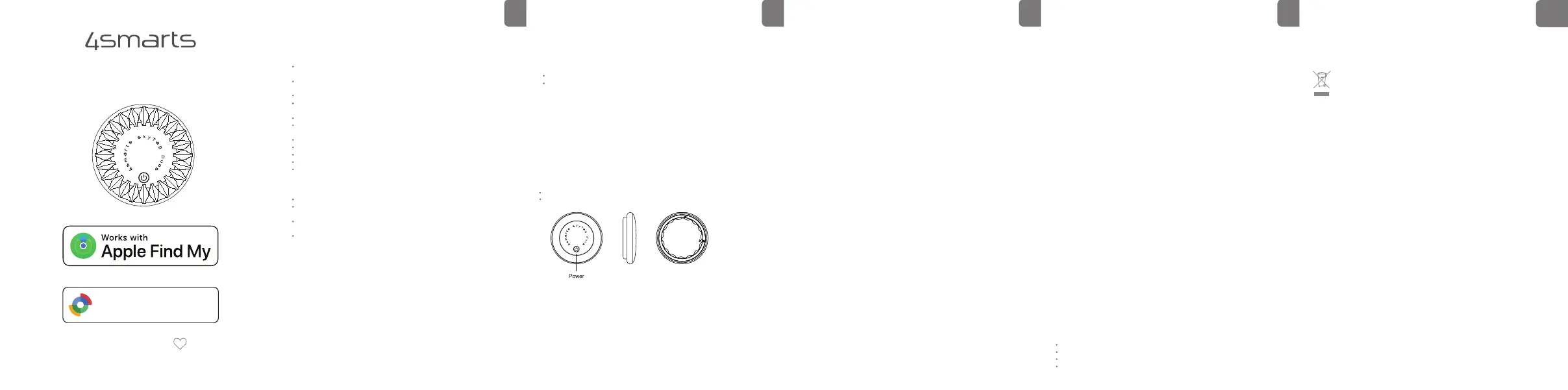
When you replace the battery, use a CR2032 coin cell and make sure the positive (+) side is
facing up. Pro tip: Gently press and twist the latch to open the battery compartment. Make sure
to close the compartment securely to ensure a stable connection.
ON/OFF button
The ON/OFF symbol on the front is used to activate and deactivate your SkyTag Duos.
Short press: Switches the device on, accompanied by a start sound.
Long press: Triggers two consecutive beeps to announce that the device is shutting down.
Location Monitoring
Use the Find My app at any time to check the location of your SkyTag Duos. This is especially
helpful when searching for a misplaced item. The location will be displayed on a map.
Acoustic Search
If the SkyTag Duos is nearby but not visible, activate the sound signal via the app. The built-in
speaker emits a sound at 80-100 dB, allowing you to locate the device quickly.
Customize Settings
Adjust the name or other settings of the SkyTag Duos in the Find My app to suit your
preferences.
Battery Status
The app displays the battery level of the SkyTag Duos, so you can replace it in a timely manner.
Resetting
If the SkyTag Duos is not paired with an Apple ID within ten minutes, it automatically enters
power-saving mode and ends the active connection. To reset, press the button five times
consecutively and hold it on the fifth press for 5 seconds until you hear a confirmation sound.
A distinct startup sound signals a successful reset. You can then repeat the pairing process.
Pairing with another Apple ID:
To pair the SkyTag Duos with another Apple device, first remove it from your Find My app. Go
to the "Items" tab, select the SkyTag Duos, scroll to the bottom of the detail card, and choose
"Remove Item." Then, follow the pairing instructions above to connect it to a different ID.
Activating Lost Mode
You can enable "Lost Mode" on the SkyTag Duos to make it easier to find lost items.
1. Open the Find My app and select the added SkyTag Duos.
2. Tap "Lost" and follow the on-screen instructions.
3. Enter your phone number so others can contact you if they find your SkyTag Duos.
4. You will receive a push notification as soon as your SkyTag Duos is detected by a device
within the "Find My" network.
Tracking Prevention
Your iOS device will alert you if a foreign SkyTag Duos remains near you for an extended period.
If the device remains undetected, an alarm will sound to warn you. Note: You will not receive a
notification if the SkyTag Duos is near its owner.
Privacy Protection
Only you can see the location of your SkyTag Duos. The device does not store location data or
histories physically. All data transmissions within the "Find My" network are nonymous and
encrypted. Neither Apple nor other users can view the identity or location of devices
participating in the search.
Adding the SkyTag Duos to Google Find Hub
1. Make sure your Android smartphone is running Android 9 or later.
2. Enable your device’s Bluetooth and Location functions to establish the connection.
3. Open the Find Hub app.
4. Tap “Add new device” or “Pair tracker.”
5. Turn on the SkyTag Duos by briefly pressing the on/off symbol on the front.
6. Hold the SkyTag Duos close to your smartphone (maximum distance 10 cm) so it can be detected.
7. A pop-up will appear; pair the “Air Device” displayed in it.
8. Follow the on-screen instructions and confirm the pairing.
9. Assign a name to your SkyTag Duos so you can easily identify it in the app.
Note: If the pop-up window does not appear, please check your internet and wireless connections
or log out of the app and log back in again.
After successful setup, your SkyTag Duos will appear in the device list of the Find My Device app.
Pairing with another Google Account
If you want to connect your SkyTag Duos to another Google account, first remove it from the Find
My Device app. Open the app and select your SkyTag Duos. Tap “Remove device.”
Then press the button five times in quick succession, holding it for about 5 seconds on the fifth
press until a confirmation tone sounds.
After that, you can pair the SkyTag Duos with another Google account by following the steps above
again.
Activating Lost Mode
If you’ve lost your SkyTag Duos:
1. Open the Find My Device app and select the respective device.
2. Activate Lost Mode and optionally provide a phone number or email address.
You’ll automatically receive a notification once your SkyTag Duos is detected by another device
within the Find My Device / Find Hub network.
Protection Against Unwanted Tracking
Your Android device automatically detects if an unknown tracker stays near you for an extended
period. In this case, you’ll receive a warning notification. If the SkyTag Duos remains nearby, it will
emit a sound alert to notify you.
Privacy Protection
Only you can see the location of your SkyTag Duos. The device does not store any location data
locally. All data transmissions via the Google Find My Device network are encrypted and
anonymized. Neither Google nor other users can access your identity or the exact location of your
tracker.
1.1 General Safety Instructions
Please read this user manual and the safety instructions carefully before first use. We
asume no liability for damages caused by failure to comply with these instructions and
safety guidelines.
Keep the device away from heat sources, direct sunlight, water, moisture, and any other
liquids.
Avoid strong vibrations, impacts, or excessive force. Do not drop the device or expose it
to strong shocks.
Store the device in a clean, cool, and dry place. Avoid contact with corrosive substances.
Do not operate or charge the device if it has been exposed to water, moisture, or any other
liquids.
Do not use the device if it has been dropped or damaged in any way.
Repairs should only be performed by qualified personnel. Improper repairs may pose
serious safety risks.
Use the device only for its intended purpose.
The device and its accessories contain small parts that can pose a choking hazard.
Keep the device and accessories out of reach of children and pets.
This appliance is not a toy.
Batteries (battery pack or installed batteries) must not be exposed to excessive heat such
as sunshine, fire, or similar conditions.
1.2 Battery Precautions
Overheating of the battery can cause an explosion.
If the battery leaks, avoid contact of the liquid with skin and eyes. In case of direct contact,
rinse immediately with clean water and seek medical attention.
If a battery shows discoloration, deformation, abnormal heating, or other anomalies
during use, charging, or storage, discontinue use and replace it with a new battery.
Always dispose of the battery in accordance with regional disposal regulations. Do not
dispose of it in household waste.
Wireless Version: 5.3
Wireless Name: Google: Air Device - Apple: SkyTagPlus
Range: Up to 50m (unobstructed)
Battery: CR2032 coin cell (210 mAh)
Standby: Up to 16 months
Power Supply: 3V / 3.3 mA
Frequency Range: 2400 MHz – 2483.5 MHz
Transmission Power: 4dBm
Speaker: 80-100 dB
Compatible with Apple Find My or Android Find Hub
Acoustic signal for preventing unauthorized tracking of individuals
7 Warranty
Do not open the device; have it repaired by a professional.
Avoid using harsh chemicals or cleaning agents.
Use a clean, dry cloth for wiping.
Check the battery regularly and replace it if necessary to ensure long-lasting operation.
4smarts GmbH accepts no liability or warranty for damages resulting from improper
installation, assembly, or use of the product, or failure to observe the user manual and/or
safety instructions.
8 Environmental Protection Information
Electrical and electronic devices, as well as batteries, must not be disposed of with
household waste. Consumers are legally required to return them to public collection
points or retail outlets at the end of their service life. By recycling and disposing of
them properly, you make an important contribution to environmental protection.
6 Maintenance and Care
For defective products or issues during installation, please contact your retailer or
the 4smarts Product Support team at: http://www.4smarts.com/contact.
Service Hotline: Monday–Friday, 9 AM–5 PM
Phone: +49(0)821 20708444
Email: customer-service@4smarts.com
10 Declaration of Conformity
12 Notice on Network Technologies and Trademark Rights
Hereby, 4smarts GmbH declares that this product complies with the essential requirements
and other relevant provisions of Directive 2014/53/EU. For further information and the full
Declaration of Conformity under the RED Directive, please visit: www.4smarts.com.
This product generates data during use (e.g. location, voice or status information). These
data are accessible only to the user and are used solely for providing functionality.
Processing takes place within the respective system, app or device. 4smarts has no access
to these data.
Use of the Works with Apple badge means that a product has been designed to work specifically
with the technology identified in the badge and has been certified by the product manufacturer
to meet Apple Find My network product specifications and requirements. Apple is not
responsible for the operation of this device or use of this product or its compliance with safety
and regulatory standards.
Apple, Apple Find My, Apple Watch, Find My, iPhone, iPad, iPadOS, Mac, macOS and watchOS
are trademarks of Apple Inc., registered in the U.S. and other countries. IOS is a trademark or
registered trademark of Cisco in the U.S. and other countries and is used under license. To use
the Apple Find My app to locate this item, the latest version of iOs, iPadOs, or macOS is
recommended.
Use of the Works with Google Find My Device badge means that this product has been designed
to work specifically with the Find My Device network and has been certified by the manufacturer
to meet Google’s network product specifications and requirements. Google is not responsible
for the operation of this device or its compliance with safety and regulatory standards.
Google, Android, and Find My Device are trademarks of Google LLC.
9 Service and support
Adding SkyTag Duos to Apple Find My:
1. Ensure your iPhone or iPad runs iOS 14.5 or later.
2. Activate your device’s Bluetooth function so that the SkyTag Duos can be detected and connected.
3. Open the Find My app.
4. Select the "Add Item" option.
5. Turn on the SkyTag Duos by briefly pressing the on/off symbol on the front.
6. Place the SkyTag Duos near your iPhone (maximum 10 cm distance) to ensure detection.
7. Follow the on-screen instructions and tap "Connect" when prompted.
8. Assign a name to the SkyTag Duos to easily identify it in the app.
9. Once setup is complete, the SkyTag Duos will appear under the "Items" tab in the Find My app.
11 EU Data Act Notice
LOCATION FINDER
SKYTAG DUOS
Find Hub
Works with Android