Crestron CCS-UC-1-T-V Manual


Læs gratis den danske manual til Crestron CCS-UC-1-T-V (2 sider) i kategorien Videokonferencesystem. Denne vejledning er vurderet som hjælpsom af 58 personer og har en gennemsnitlig bedømmelse på 3.9 stjerner ud af 29.5 anmeldelser. Har du et spørgsmål om Crestron CCS-UC-1-T-V, eller vil du spørge andre brugere om produktet?

Side 1/2
Quick Start
The CCS-UC-1-T-V is part of the UC-M150-T Unified Communications (UC) Video Conference System for Microsoft Teams™.
Check the Box
Item Qty
CCS-UC-1-T-V 1
Cable, CAT5e, RJ-45 Male - RJ-45 Male, 12 ft (3.66 m) (P/N 2033988) 1
Cable, USB 2.0, A - Micro B, 6 ft (1.83 m) (P/N 2047803) 1
Retention Plate, Cable (P/N 2047908) 1
Tie Wrap (P/N 2047935) 3
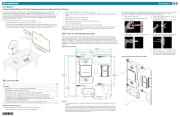
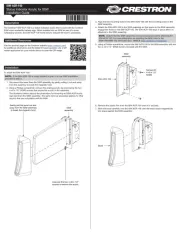
Install the Cable Retention Plate
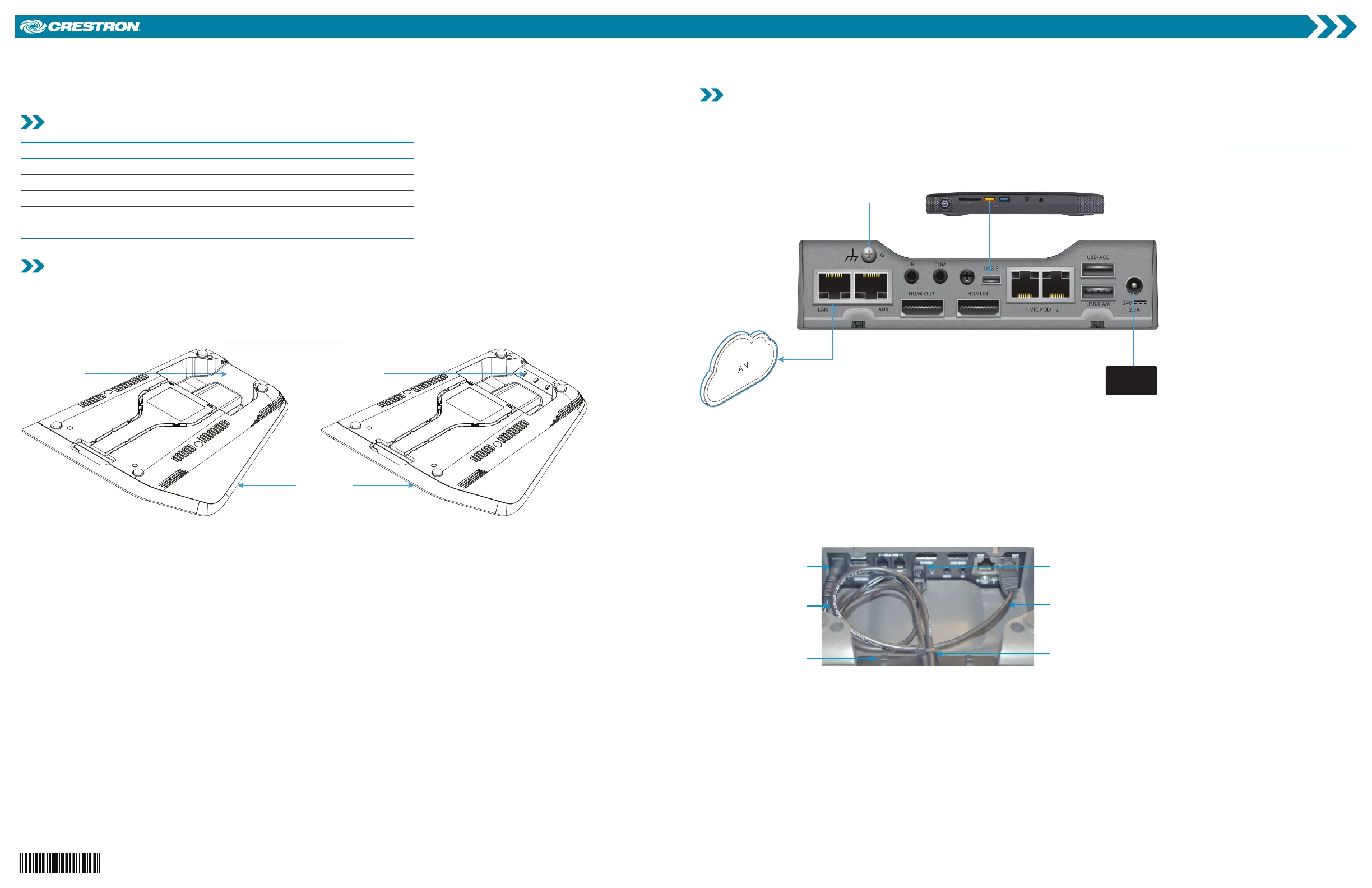
Remove the adhesive backing from the cable retention plate and install it as shown in the following diagram. The cable retention plate is designed
to fit at the cable exit location at the rear of the chassis and provides three tie-down points for cables connected to the device.
CAUTION: When turning over the device, place the device on a soft surface to avoid damage.
NOTE: If the CCS-UCA-SMK swivel mount kit is to be used, use the cable retention bracket included with the CCS-UCA-SMK. For details, refer to
the CCS-UCA-SMK DO Guide (Doc. 7882) at www.crestron.com/manuals.
Install cable
retention
plate here
Cable retention
plate installed
CCS-UC-1-T-V
NOTE: Before securing cables, ensure the cable retention plate is firmly attached.
Connect the Device
Feed Cables Through the Swivel Tube Plate (Installations with CCS-UCA-SMK only)
If the CCS-UCA-SMK swivel mount kit is used in the installation, refer to the CCS-UCA-SMK DO Guide (Doc. 7882) at www.crestron.com/manuals.
Hardware Hookup
When wiring the device, it is highly recommended to use the cables that ship with the device.
LAN
LAN
Ground
UC-ENGINE
CCS-UC-1-T-V
PW-2420-RU
1. Make connections to the device.
When using the CCS-UC-1-TV as an audio device, connect the CBL-USB-A-BMICRO-6 cable to the USB B port on the CCS-UC-1-T-V and a
USB port on the UC-ENGINE.
Connect the 12 ft (3.6 m) CAT5e cable to the LAN port and to the corporate LAN. The CCS-UC-1-T-V and UC-ENGINE must be on the
same network switch.
Connect the CCS-UC-1-T-V to earth ground.
Connect the PW-2420RU power pack (included with UC-M150-T KIT) to the 24V 2.5A port.
NOTE: The CCS-UC-1-T-V can also be powered by Power over Ethernet Plus (PoE+). However, if the CCS-UCA-MIC is to be used, the CCS-
UC-1-T-V must be powered by the PW-2420-RU. For additional details on powering the device by PoE+, refer to “Power Supply” below.
2. Use the provided tie wraps to secure the cables to the cable retention plate, leaving enough cable to create a 2- to 3-inch service loop.
Service loops
Cable retention plate
Power cable USB cable
Ethernet cable
Tie wrap
Power Supply
The CCS-UC-1-T-V can receive power over PoE+ (IEEE 802.3at) or the PW-2420RU power pack. A standard PoE switch cannot provide sufficient
power to the device.
The PW-2420RU power pack must be connected to the CCS-UC-1-T-V if the optional CCS-UCA-MIC microphone pods are to be used.
Observe the following when powering the CCS-UC-1-T-V by PoE+:
PoE-type networks connected to these ports are for intrabuilding use only and should not be connected to lines that run outside of the
building in which this product is located.
When powering the CCS-UC-1 with PoE+ (IEEE 820.3at), PoE+ switches that utilize Link Layer Discovery Protocol (LLDP) must have LLDP
enabled. Please coordinate with the IT Administrator who manages network infrastructure at the customer site to make sure the PoE+ ports
have LLDP enabled. For more information, refer to the CCS-UC-1 Supplemental Guide (Doc. 7844).
CCS-UC-1-T-V
Crestron Mercury® Tabletop Unified Communications Video Conference Console for Microsoft Teams


Produkt Specifikationer

Mærke: Crestron
Kategori: Videokonferencesystem
Model: CCS-UC-1-T-V

Har du brug for hjælp?

Hvis du har brug for hjælp til Crestron CCS-UC-1-T-V stil et spørgsmål nedenfor, og andre brugere vil svare dig


Videokonferencesystem Crestron Manualer
Crestron

Crestron SIW-ACR-100 Manual

28 September 2025
Crestron

Crestron UC-FCM-U Manual

24 September 2025
Crestron

Crestron UC-PHONE-T Manual

23 September 2025
Crestron

Crestron UC-P100-S Manual

23 September 2025
Crestron

Crestron UC-FCMX-Z Manual

23 September 2025
Crestron

Crestron UC-FCMX-T Manual

23 September 2025
Crestron

Crestron UC-FCM-Z Manual

23 September 2025
Crestron

Crestron UC-B140-T Manual

23 September 2025
Crestron

Crestron UC-P110-S Manual

23 September 2025

Videokonferencesystem Manualer

Nyeste Videokonferencesystem Manualer

Telycam

Telycam Meet+ 3 Manual

8 December 2025
Telycam

Telycam Meet+ 10 Manual

18 November 2025
Martin

Martin VDO Face 5 HC Manual

15 November 2025
Telycam

Telycam Meet+ 20-U3 Manual

12 November 2025
KanDao

KanDao Meeting 360 Manual

12 November 2025
Balt

Balt Flipper-36 Manual

5 November 2025
DVDO

DVDO -C6DL-1-G Manual

5 November 2025
ROCWARE

ROCWARE RT10 Manual

4 November 2025
ROCWARE

ROCWARE RC10 Manual

30 Oktober 2025