Crestron UC-B140-T Manual


Læs gratis den danske manual til Crestron UC-B140-T (2 sider) i kategorien Videokonferencesystem. Denne vejledning er vurderet som hjælpsom af 14 personer og har en gennemsnitlig bedømmelse på 4.9 stjerner ud af 7.5 anmeldelser. Har du et spørgsmål om Crestron UC-B140-T, eller vil du spørge andre brugere om produktet?

Side 1/2
Quick Start
The Crestron® UC-B140-T Wall Mount UC Video Conference System for Microsoft Team
software delivers a powerful, professional solution for knowledge workers who want the
Microsoft Teams software experience in small to midsize meeting spaces and conference rooms.
It includes the UC-SB1-CAM-FLEX UC smart soundbar and camera for full-duplex wideband
audio and HD video, a UC-BRKT-100-SD-ASSY for ease of installation, and a TSW-1060-B-S
touch screen for system control.
To use the UC-B140-T system you must have the following:
A Microsoft Teams or Skype® for Business software account
An environment running Microsoft Exchange Server® software (2013 SP1 or later for on-
premises installation or Microsoft 365™ software for cloud) for scheduling and/or Skype
for Business 2015 (on-premises installation or Microsoft 365 software for cloud)
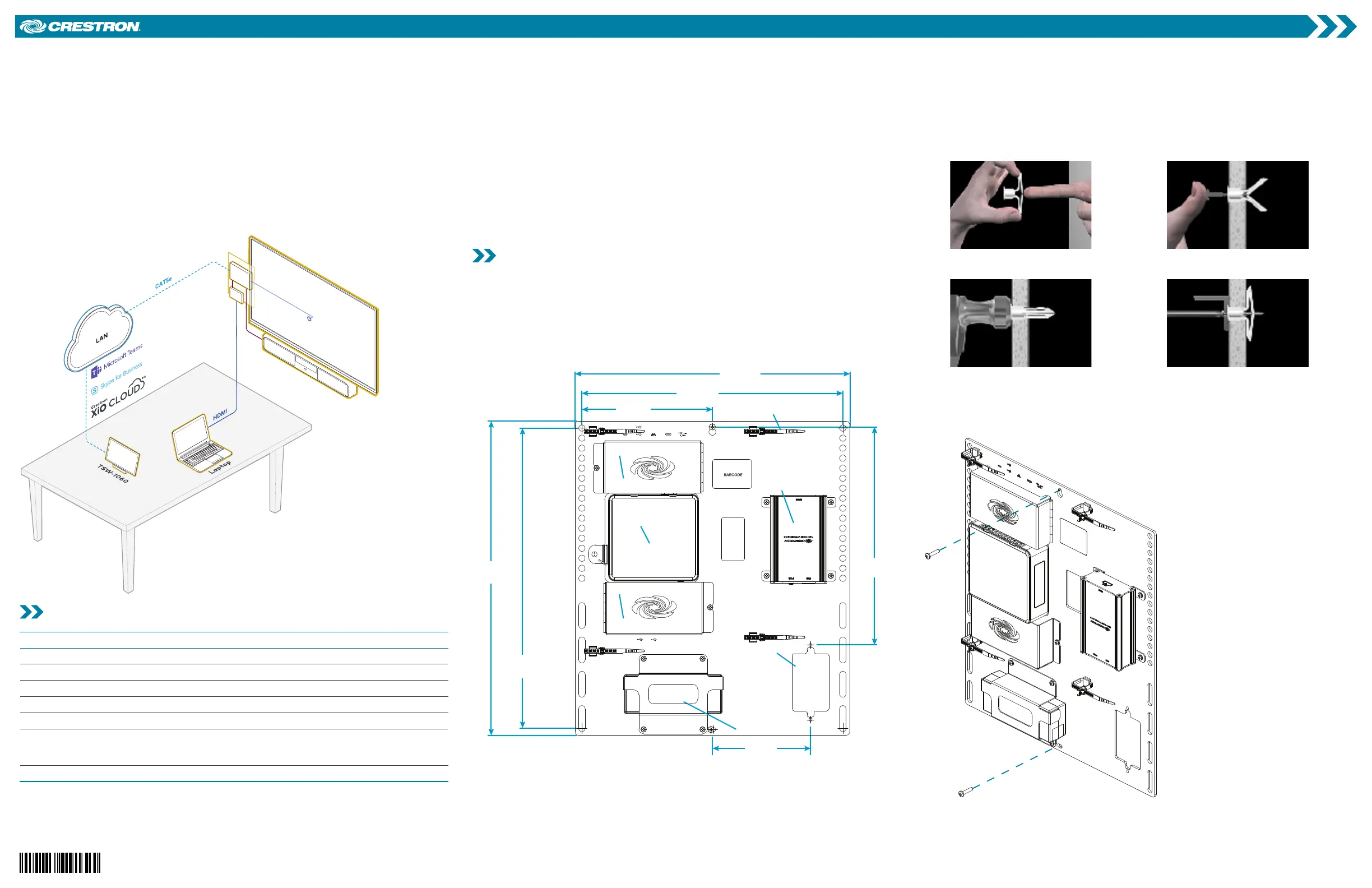
Display
UC-BRKT-100-SD-ASSY
UCSB1CAMFLEX
CAT5e
UCENGINESD
HDCONVUSB200
HDMI
Check the Box
Item Qty
UC-B140-T 1
CBL-CAT5E-7, 7 ft (2.1 m) CAT5e Cable (P/N 6509924) 2
PWE-4803RU PoE Injector (P/N 6502429) 1
TSW-1060-B-S 10.1 in. Touch Screen, Black Smooth (P/N 6507651) 1
TSW-1060-TTK-B-S Tabletop Kit for TSW-1060, Black Smooth (P/N 6507729) 1
UC-BRKT-100-SD ASSY Wall Bracket Assembly (includes HD-CONV-USB-200,
UC-CONN-HD, and UC-ENGINE-SD, Power Cord, Connector Cover Screws with Tools,
and Mounting Hardware) (P/N 6511033)
1
UC-SB1-CAM-FLEX UC Video Conference Smart Soundbar (P/N 6511046)
1
Additional Requirements
The following items (not included) are required to build the system.
A video display, to be connected to the UC-ENGINE-SD
USB keyboard and mouse to configure the system
USB to HDMI adapter to connect the UC-ENGINE-SD USB port to the display device via
HDMI
HDMI® cable to connect a display device
HDMI cable to connect an HDMI source
Ethernet cable to connect the PoE injector to the network
#1 Phillips head screwdriver
Drill with a 5/16 in. bit (required for use with mounting anchors)
NOTE: Crestron recommends using Crestron cables only. For optimum performance, Crestron
offers the UC-B-ACCY KIT which includes all of the required hookup cables and a wireless
keyboard with integrated touchpad.
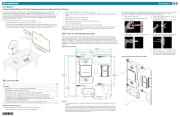
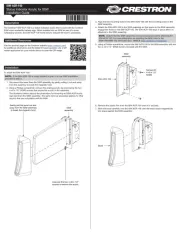
Install the Wall Bracket Assembly
The wall bracket assembly can be installed on a wall behind a display device, or attached to
the rear of the display device. The wall bracket assembly includes mounting slots on both side
edges, spaced 100, 200, and 300 mm vertically, to allow for attachment to either side of the
display mounting plate. Additional mounting holes are provided on each side for other mounting
locations. Centerline mounting holes are also provided for attachment to the building structure.
Integrated, reusable cable tie wraps manage cable runs between the wall bracket and peripheral
devices.
Dimensions and Callouts
14.00 in.
(356 mm)
7.00 in.
(178 mm)
16.00 in.
(406 mm)
15.30 in.
(389 mm)
5.00 in.
(127 mm)
11.11 in.
(282 mm)
13.30 in.
(338 mm)
Connector Cover
Connector Cover
Wall Plate Opening
Power Pack
Reusable Cable Tie Wrap (x4)
UC-ENGINE-SD
HD-CONV-USB-200
NOTES:
The integrated cable tie wraps are reusable. Take care to avoid damage to the cable tie
wraps.
The wall bracket assembly has an opening and pass through screw holes for placement
over a US electrical wall box that can be covered by a decorative wall plate. If the wall
plate opening will be positioned over an electrical wall box, longer screws will be needed
to secure the decorative wall plate to the electrical box. Do not secure the wall bracket
assembly with the wall plate opening screws.
When mounting on a wall, the wall bracket assembly should be anchored to the wall. The screws
and anchors included with the assembly are best suited for surfaces with 3/8 in. to 3/4 in.
thickness. To use the included anchors, perform the following procedure.
1. Drill a 5/16 in. pilot hole.
2. Fold the anchor in the middle and pinch
the ends together.
3. Insert the anchor in the hole and tap flush
with the wall.
4. Insert the included anchor key to pop the
anchor open and lock it.
WARNING: Do not force or hammer key.
5. Drive the screw partially into the anchor,
leaving 1/4 in. of the screw exposed.
6. Repeat steps 1 - 5 for the other anchor.
7. Place the wall bracket assembly on the
screws and hand tighten the screws until
the wall bracket is secured to the wall.
Install the Wall Bracket Assembly On a Wall
UC-B140-T
Crestron Flex Wall Mount UC Video Conference System for Microsoft Teams® Rooms


Produkt Specifikationer

Mærke: Crestron
Kategori: Videokonferencesystem
Model: UC-B140-T

Har du brug for hjælp?

Hvis du har brug for hjælp til Crestron UC-B140-T stil et spørgsmål nedenfor, og andre brugere vil svare dig


Videokonferencesystem Crestron Manualer
Crestron

Crestron SIW-ACR-100 Manual

28 September 2025
Crestron

Crestron UC-FCM-U Manual

24 September 2025
Crestron

Crestron UC-PHONE-T Manual

23 September 2025
Crestron

Crestron UC-P100-S Manual

23 September 2025
Crestron

Crestron UC-FCMX-Z Manual

23 September 2025
Crestron

Crestron UC-FCMX-T Manual

23 September 2025
Crestron

Crestron UC-FCM-Z Manual

23 September 2025
Crestron

Crestron UC-B140-T Manual

23 September 2025
Crestron

Crestron UC-P110-S Manual

23 September 2025

Videokonferencesystem Manualer

Nyeste Videokonferencesystem Manualer

Telycam

Telycam Meet+ 3 Manual

8 December 2025
Telycam

Telycam Meet+ 10 Manual

18 November 2025
Martin

Martin VDO Face 5 HC Manual

15 November 2025
Telycam

Telycam Meet+ 20-U3 Manual

12 November 2025
KanDao

KanDao Meeting 360 Manual

12 November 2025
Balt

Balt Flipper-36 Manual

5 November 2025
DVDO

DVDO -C6DL-1-G Manual

5 November 2025
ROCWARE

ROCWARE RT10 Manual

4 November 2025
ROCWARE

ROCWARE RC10 Manual

30 Oktober 2025