TP-Link Omada Pro G36 Manual
TP-Link Router Omada Pro G36

Læs gratis den danske manual til TP-Link Omada Pro G36 (2 sider) i kategorien Router. Denne vejledning er vurderet som hjælpsom af 12 personer og har en gennemsnitlig bedømmelse på 4.6 stjerner ud af 6.5 anmeldelser. Har du et spørgsmål om TP-Link Omada Pro G36, eller vil du spørge andre brugere om produktet?

Side 1/2
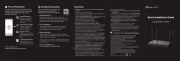
Installation Guide
Note: G36 is used as an example throughout the Guide. The image may dier from the actual product.
Gigabit VPN Router
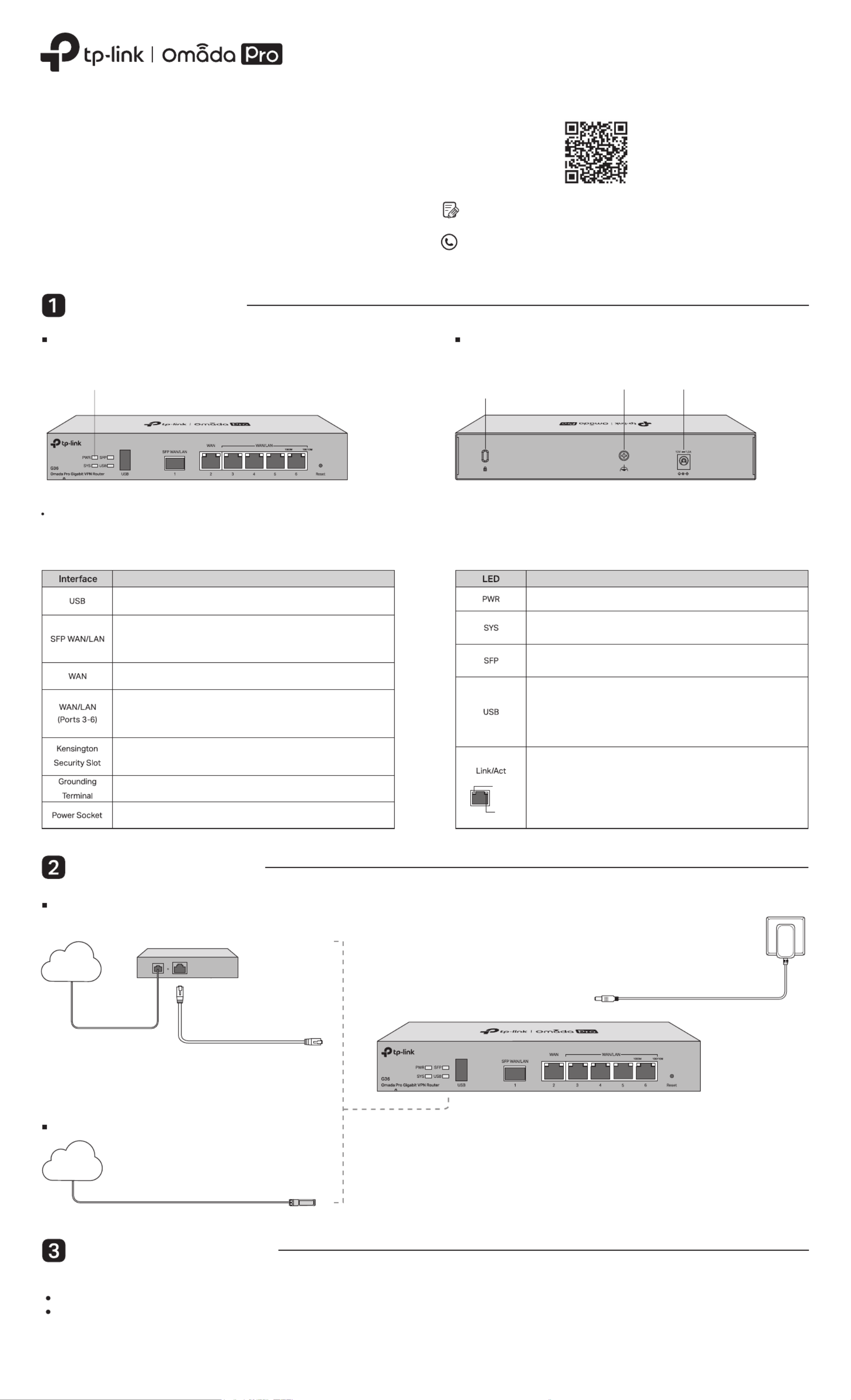
Hardware Overview
For technical support and other information, please visit
https://www.tp-link.com/support, or simply scan the QR code.
To ask questions, find answers, and communicate with TP-Link users or
engineers, please visit https://community.tp-link.com to join TP-Link
Community.
© 2023 TP-Link 7106510367 REV1.0.0
Reset: Press and hold the button for 5 seconds, and the SYS LED will
ash quickly, indicating the device is being reset to its factory default
settings.
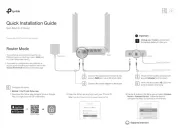
The router supports two conguration options:
Standalone Mode: Congure and manage the router by itself.
Controller Mode: Congure and manage network devices centrally. It is recommended in large-scale networks, which consist of a large number of devices such as
access points, switches, and gateways.
Note: When the router is managed by a controller, congurations of the router will be overridden by the controller.
Hardware Connection
Note: To connect to the internet via another RJ45 WAN port (ports 3-6),
congure your desired port to WAN, then connect the port to the internet
via an RJ45 cable. Refer to for more details.FAQ-Q1
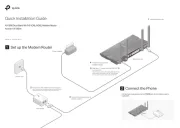
Connect via Ethernet
Modem
Connect to Port 2
Internet
Connect via ber network
Fiber-Optic Cable SFP Module
Connect to SFP WAN Slot
Internet
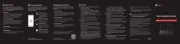
Front Panel Back Panel
On: Power is on.
O: Power is o.
Indication
Slow Flashing:
System is running normally.
Quick Flashing:
The router is being reset.
On/O:
System is starting up or running abnormally.
For USB Modem:
Flashing: A modem is connected, and it is initializing.
On: The modem is loaded.
O: No modem is inserted, or it is corrupted or incompatible.
For USB Storage:
On: A USB storage device is inserted and identied.
O: No USB storage device is inserted, or it is corrupted or incompatible.
On: Running at 1000 Mbps, but no activity.
O: No device the corresponding port. is linked to
Flashing: Running at 1000 Mbps, and transmitting or receiving data.
Green On: Running at 1000 Mbps, but no activity.
Green Flashing: Running at 1000 Mbps, and transmitting or receiving data.
Green O: Not running at 1000 Mbps, or no device is connected to the
corresponding port.
Yellow On: Running at 100/10 Mbps, but no activity.
Yellow Flashing: Running at 100/10 Mbps, and transmitting or receiving data.
Yellow O: Not running at 100/10 Mbps, or no device is connected to the
corresponding port.
Yellow
Green
Software Conguration
Use the charger provided in the
package to power on the router
Kensington
Security Slot
Power SocketGrounding Terminal
Gigabit SFP WAN/LAN port connecting to an SFP module.
By default, it is a WAN port.
You can congure it to a LAN port on the management page.
USB 3.0 for USB modem and USB storage device.
Description
Gigabit RJ45 WAN port.
Gigabit RJ45 WAN/LAN ports.
By default, they are LAN ports connecting to local PCs or switches.
You can congure each port to a WAN port on the management page.
Secure the lock (not provided) into the security slot to prevent the device
from being stolen.
The router comes with a lightning protection mechanism.
Connect to the power outlet via the provided power adapter.
LED


Produkt Specifikationer

Mærke: TP-Link
Kategori: Router
Model: Omada Pro G36

Har du brug for hjælp?

Hvis du har brug for hjælp til TP-Link Omada Pro G36 stil et spørgsmål nedenfor, og andre brugere vil svare dig


Router TP-Link Manualer

TP-Link

TP-Link Archer GE400 Manual

6 November 2025
TP-Link

TP-Link Archer BE220 Manual

16 September 2025
TP-Link

TP-Link ER7406 Manual

7 September 2025
TP-Link

TP-Link Festa FR365 Manual

2 September 2025
TP-Link

TP-Link XN020-G3 Manual

1 September 2025
TP-Link

TP-Link EX230v Manual

1 September 2025
TP-Link

TP-Link Archer A64 Manual

28 August 2025

Router Manualer

Nyeste Router Manualer

ZyXEL

ZyXEL NR5111 Manual

29 November 2025
Festool

Festool MFKC 700 EB Manual

29 November 2025
Festool

Festool MFK 700 KA EQ Manual

27 November 2025
Festool

Festool OFKC 500 EB Manual

26 November 2025
Festool

Festool MFK 700 KA EB Manual

25 November 2025
ZTE

ZTE T3000 Manual

21 November 2025
Vivanco

Vivanco 802.11g Manual

16 November 2025
Blustream

Blustream WMF72 Manual

14 November 2025
EtherWAN

EtherWAN EasyCell Manual

13 November 2025
EtherWAN

EtherWAN C4G-M-4P6M Manual

13 November 2025