EN
DE PT:BR
IT RU
ES FI
TR HUZH
CS NOZH:SC
NL PLFR
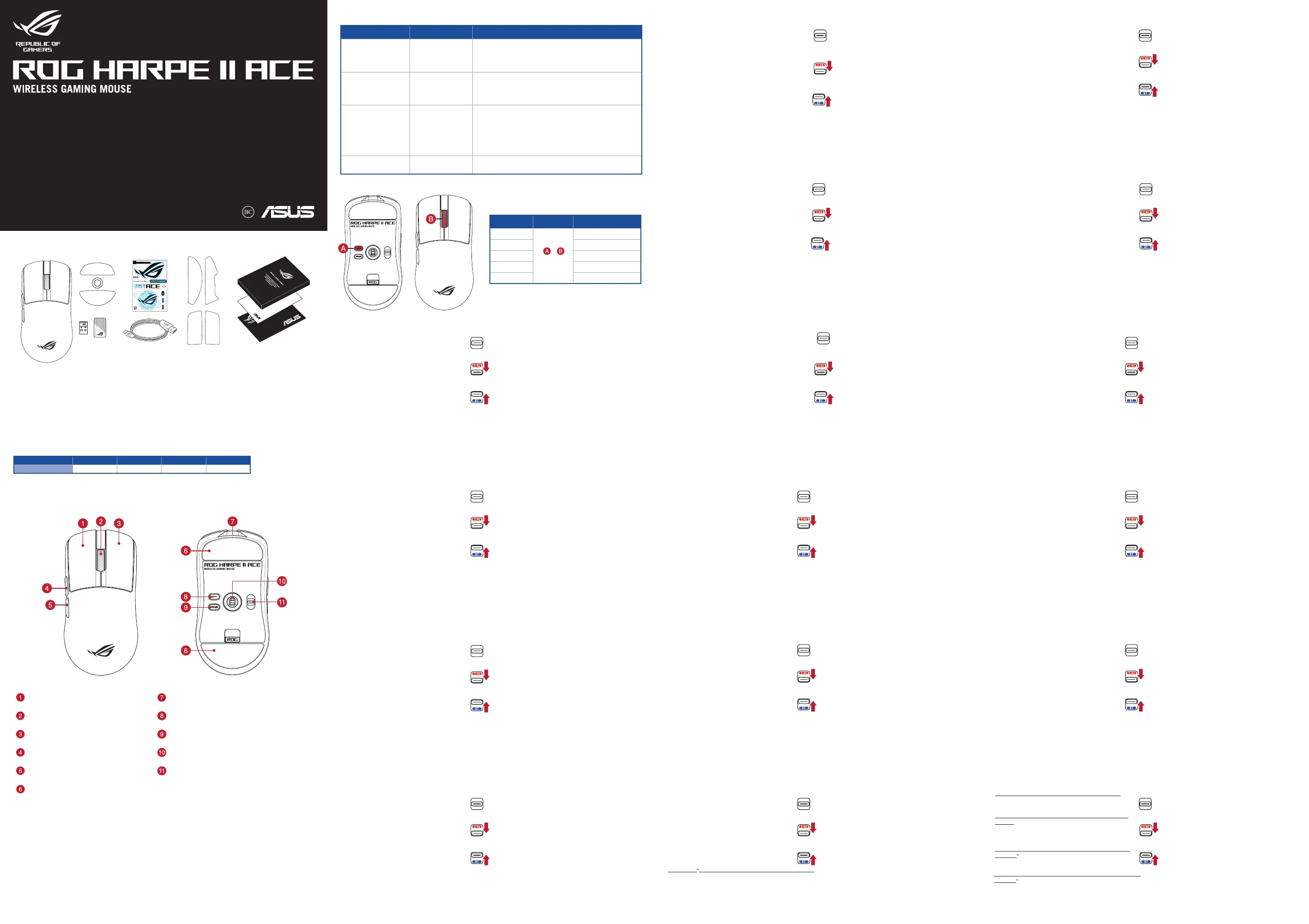
Mouse features /
滑鼠功能
/
鼠標功能
Package Contents
Q25971 / First Edition / February 2025
Quick Start Guide
快速使用指南(繁體中文)
快速使用指南(簡體中文)
クイックスタートガイド (JP)
간단사용설명서
(KO)
Guide de démarrage rapide (FR)
Schnellstartanleitung (DE)
Guida rapida (IT)
Guia de Início Rápido (PT:BR)
Краткое руководство (RU)
Guía de inicio rápido (ES)
Beknopte handleiding (NL)
Hızlı Başlangıç Kılavuzu (TR)
Стисле керівництво для початку
експлуатації (UA)
Przewodnik szybkiego startu (PL)
Rychlý průvodce (CS)
Ghid de pornire rapidă (RO)
Gyors üzembe helyezési útmutató (HU)
Snabbstartshandbok (SV)
Pikaopas (FI)
Hurtigstartveiledning (NO)
Stručný návod na používanie (SK)
(AR)
)HB
Profile switching
Profile Hot Key Lighting effect
Profile 1
+
(Cycles through
Profiles 1~5)
Color Cycle
Profile 2 Breathing (purple)
Profile 3 Static (blue)
Profile 4 Breathing (green)
Profile 5 Reactive (yellow)
Specifications*
Resolution DPI 1 DPI 2 DPI 3 (Default) DPI 4
100 DPI to 42000 DPI 400 DPI 800 DPI 1600 DPI 3200 DPI
* You may customize the DPI settings for DPI 1-4 through Armoury Crate or the DPI On-The-Scroll tuning function.
* We recommend using the wireless dongle extender when using the mouse in 2.4GHz mode.
我們建議當您在使用滑鼠的 RF 2.4GHz 無線模式時,使用無線接收器延長器。
我們建議當您在使用鼠標的
RF 2.4GHz
無線模式時,使用無線接收器延長器。
** Only use the wireless dongle extender for the wireless dongle.
無線接收器延長器僅可用於連接無線接收器。
無線接收器延長器僅可用於連接無線接收器。
*** Remove the pre-installed mouse feet before installing the bundled mouse feet.
請先移除預裝的滑鼠腳墊,然後再安裝隨附的腳墊。
請先移除預裝的鼠標腳墊,然後再安裝隨附的腳墊。
**** We do not recommend using the bundled glass mouse feet with a glass mouse pad.
不建議您將隨附的玻璃滑鼠腳墊與玻璃滑鼠墊一起使用。
不建議您將隨附的玻璃鼠標腳墊與玻璃鼠標墊一起使用。
Left-click button
/
左鍵
/
左鍵
USB Type-C
®
connector /
USB Type-C
®
連接埠
/ USB
Type-C
®
接口
Scroll wheel
/
滾輪
/
滾輪
DPI button /
DPI
按鈕
/ DPI
按鈕
Right-click button
/
右鍵
/
右鍵
Pairing button /
配對按鈕 / 配對按鈕
Forward button /
向前按鈕
/
向前按鈕
Optical sensor /
光學感測器 / 光學感應器
Backward button /
向後按鈕
/
向後按鈕
Connection mode switch /
連線模式切換開關 / 連接
模式切換開關
Mouse feet /
滑鼠腳墊
/
鼠標腳墊
Onboard settings adjustment
Description Key Combination Lighting effect
Hardware Reset
Hold Left-click button
+ Right-click button
+ Scroll wheel + DPI
button for 3 seconds
The Scroll LED will blink red once the key combination is held
down until the reset is complete. The scroll LED will blink green
once the reset is complete.
Zone mode
Hold DPI button +
Forward button +
Backward button in RF
2.4G Wireless mode
The Scroll LED will blink red, indicating that you have enabled
Zone mode, pressing the same key combination will revert back
to the default mode and the Scroll LED will blink blue.
Polling rate level switch
Pairing button +
Backward button
Cycles through the following polling rates:
125 Hz (red) / 250 Hz (purple) / 500 Hz (blue, BT not supported)
/ 1000 Hz (green, BT not supported) / 2000 Hz (yellow, BT not
supported) / 4000 Hz (blue-green, BT not supported) / 8000 Hz
(white, BT not supported)
* The polling rate booster is not supported for this product. 2000 Hz, 4000 Hz, and 8000
Hz can be reached with the bundled wireless dongle connected.
Sensor Lift-off-distance
level switch
Pairing button +
Forward button
Cycles through the following lift-off-distances:
Low (red, default) / High (purple)
型號
/
Model: P723
Setting up your gaming mouse as a Bluetooth
®
wireless
mouse
Set the connection switch to the Bluetooth
®
mode.
Updating the firmware and customization
1. Connect your gaming mouse to your computer using the
bundled cable, then connect the USB dongle to a USB port.
2. Visit the Gear Link website to update your gaming mouse
and dongle’s firmware, and to customize your gaming
mouse.
Connecting your gaming mouse
Setting up your gaming mouse as a wired mouse
Connect the bundled USB Type-C
®
to Type-A cable to your
gaming mouse and a USB port on your computer
Setting up your gaming mouse as a RF wireless mouse
1. Connect the USB dongle to a USB port on your
computer.
2. Set the connection switch to the RF 2.4G Wireless
mode.
Pairing Bluetooth
®
mode to additional host devices (max. 3)
1. Set the connection switch to the Bluetooth
®
mode.
2. Press and hold the Pairing button for 3 seconds until the LED
on your gaming mouse start to blink blue. Once your gaming
mouse has been successfully paired, the LED indicator on your
gaming mouse will light up blue for 3 seconds.
Using Zone mode
Zone mode allows for maximum mouse performance by
disabling selected functions that affect performance whilst
activated. For more information on Zone mode and the functions
disabled when Zone mode is activated, please visit the product
site.
將您的電競滑鼠設定為藍牙
®
無線滑鼠
將連線模式切換至 藍牙
®
模式。
更新韌體及個人化
1. 使用隨附的 USB 線將電競滑鼠連接至電腦,然後將 USB 無線
訊號接收器連接至電腦。
2. 請造訪 Gear Link 網站更新您的電競滑鼠和 USB 無線訊號接
收器韌體,以及自訂您的電競滑鼠。
連接您的電競滑鼠
將您的電競滑鼠設定為有線滑鼠
將隨附的 USB Type-C
®
轉 Type-A 線的一端連接至電競滑
鼠,另一端插入電腦的 USB 連接埠。
將您的電競滑鼠設定為 RF 無線滑鼠
1. 將 USB 無線訊號接收器插入電腦的 USB 連接埠。
2. 將連線模式切換至 RF 2.4G 無線模式。
藍牙
®
模式下與其他主機裝置配對(最多 3 個裝置)
1. 將連線模式切換至 藍牙
®
模式。
2. 長按配對按鈕 3 秒直至電競滑鼠上的 LED 指示燈變為藍色閃
爍。電競滑鼠配對成功後,LED 指示燈將會亮藍色 3 秒。
使用 Zone mode
當開啟 Zone mode 時會停用部分功能,使滑鼠維持效能最大化。
如需更多關於 Zone mode 的資訊及開啟時會停用的功能,請參考
該產品網站。
將您的電競鼠標設置為藍牙
®
無線鼠標
將連接模式切換至【藍牙
®
模式】。
更新固件及自定義
1. 使用隨附的 USB 線將電競鼠標連接至電腦,然後將 USB 無
線信號接收器連接至電腦。
2. 請訪問 Gear Link 網站更新您的電競鼠標和 USB 無線信號接
收器固件,以及自定義您的電競鼠標。
連接您的電競鼠標
將您的電競鼠標設置為有線鼠標
將隨附的 USB Type-C
®
轉 Type-A 線的一端連接至電競
鼠標,另一端插入電腦的 USB 接口。
將您的電競鼠標設置為 RF 無線鼠標
1. 將 USB 無線信號接收器插入電腦的 USB 接口。
2. 將連接模式切換至【RF 2.4G 無線模式】。
藍牙
®
模式下與其他主機設備配對(最多 3 個設備)
1. 將連接模式切換至【藍牙
®
模式】。
2. 長按配對按鈕 3 秒直至電競鼠標上的 LED 指示燈變為藍色閃
爍。電競鼠標配對成功後,LED 指示燈將會亮藍色 3 秒。
使用區域模式
當開啟 Zone mode 時會停用部分功能,使鼠標維持優質性能。如
需更多關於 Zone mode 的信息及開啟時會停用的功能,請參考該
產品網站。
Configurer votre souris gaming en tant que souris sans-
fil (Bluetooth)
Réglez l'interrupteur de connexion sur le mode Bluetooth.
Mise à jour du firmware et personnalisation
1. Connectez votre souris gaming à votre ordinateur grâce au
câble fourni, puis connectez le dongle USB à un port USB.
2. Rendez-vous sur le site de Gear Link pour mettre à jour le
firmware de la souris et du dongle, et pour personnaliser
votre souris.
Connecter votre souris gaming
Configurer votre souris gaming en tant que souris filaire
Connectez le câble USB Type-C® vers Type-A fourni à
votre souris et à un port USB de votre ordinateur
Configurer votre souris gaming en tant que souris sans-fil (RF)
1. Connectez le dongle USB au port USB de votre
ordinateur.
2. Réglez l'interrupteur de connexion sur le mode sans
fil RF 2,4G.
Appairage d'appareils supplémentaires en mode Bluetooth (3 max.)
1. Réglez l'interrupteur de connexion sur le mode Bluetooth.
2. Appuyez sur le Bouton d'appairage et maintenez-le enfoncé pendant
3 secondes jusqu'à ce que la LED de votre souris clignote en bleu.
Une fois votre souris gaming associée avec succès, la LED de votre
souris gaming s'allume en bleu pendant 3 secondes.
Utilisation du mode Zone
Le mode Zone permet d'optimiser les performances de la
souris en désactivant certaines fonctions qui affectent les
performances. Pour plus d'informations sur le mode Zone et
les fonctions désactivées lorsque ce mode est activé, veuillez
consulter le site du produit.
Ihre Gaming Maus als Bluetooth-drahtlose Maus einrichten
Legen Sie den Schalter für die Verbindung auf Bluetooth-Modus
fest.
Firmware aktualisieren und anpassen
1. Schließen Sie Ihre Gaming Maus über das mitgelieferte
Kabel an Ihren Computer an, verbinden Sie dann den
USB-Dongle mit einem USB-Anschluss.
2. Besuchen Sie die Gear Link-Webseite, um die Firmware
Ihrer Gaming Maus und Ihres Dongles zu aktualisieren
und Ihre Gaming Maus anzupassen.
Ihre Gaming Maus verbinden
Ihre Gaming Maus als kabelgebundene Maus einrichten
Verbinden Sie das mitgelieferte USB-Typ-C
®
-zu-Typ-A-Kabel mit
Ihrer Gaming Maus und mit einem USB-Anschluss an Ihrem
Computer
Ihre Gaming Maus als WLAN-drahtlose Maus einrichten
1. Verbinden Sie den USB-Dongle mit einem USB-Anschluss an
Ihrem Computer.
2. Legen Sie den Schalter für die Verbindung auf RF 2,4G
WLAN-Modus fest.
Im Bluetooth-Modus mit zusätzlichen Host-Geräten (max. 3)
koppeln
1. Legen Sie den Schalter für die Verbindung auf Bluetooth-Modus
fest.
2. Halten Sie die Kopplungstaste drei Sekunden lang gedrückt, bis
die LED an Ihrer Gaming Maus blau zu blinken beginnt. Sobald
Ihre Gaming Maus erfolgreich gekoppelt wurde, leuchtet die
LED-Anzeige drei Sekunden lang blau.
Zone-Modus verwenden
Der Zone-Modus ermöglicht eine maximale Mausleistung,
indem bestimmte Funktionen deaktiviert werden, die
die Leistung beeinträchtigen, während sie aktiviert
sind. Weitere Informationen zum Zone-Modus und den
Funktionen, die deaktiviert sind, wenn der Zone-Modus
aktiviert ist, finden Sie auf der Produktseite.
Pelihiiren asettaminen langattomana Bluetooth
®
shiirenä
Aseta liitäntäkytkin Bluetooth
®
-tilaan.
Laiteohjelmiston päivitys ja
mukauttaminen
1. Liitä pelihiiri tietokoneeseen toimitukseen kuuluvalla
kaapelilla. Liitä sen jälkeen toimitukseen kuuluva USB-
käyttöavain tietokoneen USB-porttiin.
2. Vieraile Gear Link -verkkosivustolla päivittääksesi pelihiiren
ja donglen laiteohjelmiston sekä mukauttaaksesi pelihiirtäsi.
Pelihiiren liittäminen
Pelihiiren asettaminen langallisena hiirenä
Liitä toimitukseen kuuluva USB Type-C
®
- Type-A -kaapeli
pelihiireen ja tietokoneen USB-porttiin.
Pelihiiren asettaminen langattomana radiotaajuushiirenä
1. Liitä toimitukseen kuuluva USB-käyttöavain
tietokoneen USB-porttiin.
2. Aseta liitäntäkytkin langattomaan RF 2.4G -tilaan.
Bluetooth
®
-tilan pariuttaminen lisäisäntälaitteisiin (maks. 3)
1. Aseta liitäntäkytkin Bluetooth
®
-tilaan.
2. Pidä Pariutus-painiketta painettuna 3 sekuntia, kunnes
pelihiiren LED-valo alkaa vilkkua sinisenä. Kun pelihiiren
pariuttaminen on onnistunut, pelihiiren LED-merkkivalo palaa
sinisenä 3 sekuntia.
Vyöhyketilan käyttäminen
Vyöhyke-tila mahdollistaa hiiren maksimaalisen suorituskyvyn
poistamalla käytöstä valittuja toimintoja, jotka vaikuttavat
suorituskykyyn aktivoituna. Lisätietoja vyöhyketilasta ja
toiminnoista, jotka ovat pois käytöstä vyöhyketilan ollessa
aktivoituna, on saatavilla tuotteen verkkosivustolta.
A játszóegér beállítása mint Bluetooth
®
vezetéknélküli egér
Állítsa át a csatlakozási kapcsolót az Bluetooth
®
-es
üzemmódra.
A firmware frissítése és testreszabás
1. Csatlakoztassa a játszóegeret a számítógéphez a tartozék
kábel használatával, majd csatlakoztassa a tartozékként
kapott USB-hardverkulcsot a számítógép USB-portjába.
2. Látogasson el a Gear Link weboldalára, hogy frissítse a
játékegér és a vevőegység firmware-jét, valamint testreszabja
a játékegeret.
A játszóegér üzembe helyezése
A játszóegér beállítása mint vezetékes egér
Csatlakoztassa a tartozék USB Type-C
®
- Type A kábelt a
játszóegérhez és a számítógép USB portjához.
A játszóegér beállítása mint RF vezetéknélküli egér
1. Csatlakoztassa a tartozékként kapott USB-
hardverkulcsot a számítógép USB-portjába.
2. Állítsa át a csatlakozási kapcsolót az RF 2,4 GHz-es
vezeték nélküli üzemmódra.
Bluetooth
®
-módban történő párosítás további gazdaeszközökkel
(maximum 3)
1. Állítsa át a csatlakozási kapcsolót az Bluetooth
®
-es üzemmódra.
2. Tartsa megnyomva a párosítási gombot 3 másodpercig, amíg
a játszóegéren lévő LED kék színnel fognak villogni. Miután a
játszóegér párosítása sikeresen megtörtént, a játszóegéren lévő
LED-jelzőfény 3 másodpercig kék színnel fog világítani.
Zóna mód használata
A zóna mód lehetővé teszi a maximális egérteljesítményt azáltal,
hogy kikapcsolja azokat a kiválasztott funkciókat, amelyek
hatással vannak a teljesítményre az aktiválás ideje alatt. További
információkért a Zóna mód és a Zóna mód aktiválásakor letiltott
funkciók kapcsán, kérjük, látogasson el a termék weboldalára.
Sette opp spillmusen som en trådløs Bluetooth
®
-mus
Sett tilkoblingsbryteren til Bluetooth
®
modus.
Oppdaterer fastvaren og tilpass
1. Koble spillmusen til datamaskinen med den medfølgende
kabelen, og koble deretter den medfølgende USB-donglen til
datamaskinens USB-port.
2. Besøk Gear Link-nettstedet for å oppdatere fastvaren til
spillmusen og dongelen din, og for å tilpasse spillmusen din.
Koble til spillmusen
Sette opp spillmusen som en kablet mus
Koble den medfølgende USB Type-C
®
til Type-A-kabelen
til spillmusen og en USB-port på datamaskinen.
Sette opp spillmusen som en trådløs RF-mus
1. Koble den medfølgende USB-donglen til
datamaskinens USB-port.
2. Sett tilkoblingsbryteren til RF 2,4 GHz trådløs modus.
Pare Bluetooth
®
-modus til flere vertsenheter (maks. 3)
1. Sett tilkoblingsbryteren til Bluetooth
®
modus.
2. Trykk og hold du inne paringsknappen i 3 sekunder til LED-
lampen på spillmusen begynner å blinke blått. Når spillmusen
har blitt paret, lyser LED-indikatoren på spillmusen blått i 3
sekunder.
Bruker sonemodus
Sone-modus tillater maksimal museytelse ved å deaktivere
utvalgte funksjoner som påvirker ytelsen mens den er aktivert.
For mer informasjon om sone modus og funksjonene som
deaktiveres når sone modus er aktivert, vennligst besøk
produktsiden.
Konfiguracja myszy dla graczy jako bezprzewodowej myszy
Bluetooth
®
Ustaw przełącznik połączenia w pozycji trybu
połączenia
Bluetooth
®
.
Aktualizowanie oprogramowania
układowego i dostosowywanie
1. Podłącz mysz dla graczy do komputera przy użyciu
dołączonego kabla, a następnie podłącz dostarczony
klucz USB do portu USB komputera.
2. Odwiedź witrynę Gear Link, aby zaktualizować
oprogramowanie sprzętowe myszy do gier i adaptera, a
także dostosować swoją mysz do gier.
Podłączanie myszy dla graczy
Konfiguracja myszy dla graczy jako myszy przewodowej
Podłącz dołączony kabel USB Type-C
®
na typu A do myszy dla
graczy i do portu USB w komputerze.
Konfiguracja myszy dla graczy jako bezprzewodowej myszy
radiowej
1. Podłącz dostarczony klucz USB do portu USB komputera.
2. Ustaw przełącznik połączenia w pozycji trybu połączenia
bezprzewodowego RF 2.4G.
Parowanie z dodatkowymi urządzeniami hosta (maks. 3) w trybie
Bluetooth
®
1. Ustaw przełącznik połączenia w pozycji trybu połączenia Bluetooth
®
.
2. Naciśnij przycisk parowania i przytrzymaj go przez 3 sekundy, aż dioda
LED myszy zaczną migać na niebiesko. Po pomyślnym sparowaniu
wskaźnik LED myszy dla graczy będzie świecić na niebiesko przez 3
sekundy.
Używanie trybu strefowego
Tryb Zone pozwala na maksymalną wydajność myszy
poprzez wyłączenie wybranych funkcji, które wpływają na
wydajność podczas jego aktywacji. Aby uzyskać więcej
informacji na temat trybu strefowego i funkcji wyłączonych
po jego aktywowaniu, odwiedź stronę produktu.
Installazione con connessione Bluetooth
®
senza fili
Impostate il selettore modalità di connessione sulla modalità
Bluetooth
®
.
Aggiornamento del firmware e
personalizzazione
1. Collegate il mouse gaming al computer usando il cavo
in dotazione, quindi inserite il dongle USB in una porta
USB.
2. Visita il sito Web di Gear Link per aggiornare il firmware
del mouse e del dongle da gioco e per personalizzare il
mouse da gioco.
Collegamento del mouse gaming
Installazione con collegamento cablato
Collegate il cavo USB tipo C
®
> tipo A al mouse gaming e alla
porta USB del vostro computer.
Installazione con connessione RF senza fili
1. Inserite il dongle USB in una porta USB del vostro
computer.
2. Impostate il selettore modalità di connessione sulla
modalità senza fili RF 2.4GHz.
Associazione della modalità Bluetooth
®
a dispositivi host aggiuntivi
(max.3)
1. Impostate il selettore modalità di connessione sulla modalità
Bluetooth
®
.
2. Premete e tenete premuto il Tasto di associazione per 3 secondi, il LED
presente sul mouse gaming lampeggerà di colore blu. Ad associazione
avvenuta il LED del mouse gaming si accende di una luce blu fissa per
3 secondi.
Utilizzo della modalità Zona
La modalità Zona consente di ottenere le massime
prestazioni del mouse disabilitando le funzioni selezionate
che influiscono sulle prestazioni quando è attivata. Per
ulteriori informazioni sulla modalità Zona e sulle funzioni
disabilitate quando la modalità Zona è attivata, visitare il
sito del prodotto.
Configurar el ratón para juegos como ratón inalámbrico de
Bluetooth
®
Establezca el conmutador de conexión en el modo de Bluetooth
®
.
Actualización del firmware y
personalización
1. Conecte el ratón para juegos al equipo mediante el
cable incluido y, a continuación, conecte la llave USB
integrada al puerto USB.
2. Visite el sitio web de Gear Link para actualizar el
firmware de su mouse y dongle para juegos, y para
personalizar su mouse para juegos.
Conectar el ratón para juegos
Configurar el ratón para juegos como ratón cableado
Conecte el cable USB Tipo-C
®
a Tipo-A incluido al ratón para
juegos y a un puerto USB de su PC.
Configurar el ratón para juegos como ratón inalámbrico de RF
1. Conecte la llave USB integrada al puerto USB del equipo.
2. Establezca el conmutador de conexión en el modo
inalámbrico de 2,4 GHz de RF.
Asociar el modo Bluetooth
®
a dispositivos host adicionales
(3 como máximo)
1. Establezca el conmutador de conexión en el modo de Bluetooth
®
.
2. presione sin Soltar el botón de asociación durante 3 segundos hasta
que LED del ratón para juegos comiencen a parpadear en azul. Una vez
que el ratón para juegos se haya asociado correctamente, el indicador
LED de dicho ratón se iluminará en verde durante 3 segundos.
Uso del modo de zona
El modo de zona permite el máximo rendimiento del mouse
al deshabilitar las funciones seleccionadas que afectan
el rendimiento mientras están activadas. Para obtener
más información sobre el modo de zona y las funciones
desactivadas cuando se activa el modo de zona, visite el
sitio del producto.
Oyun farenizi Bluetooth
®
kablosuz fare olarak ayarlama
Bağlantı anahtarını Bluetooth
®
moduna ayarlayın.
Aygıt yazılımı güncelleme ve kişiselleştirme
1. Birlikte verilen kabloyu kullanarak oyun farenizi bilgisayarınıza
bağlayın, daha sonra, birlikte sağlanan USB yardımcı aygıtını
bilgisayarınızın USB bağlantı noktasına bağlayın.
2. Oyun farenizin ve donanım kilidinizin donanım yazılımını
güncellemek ve oyun farenizi özelleştirmek için Gear Link
web sitesini ziyaret edin.
Oyun farenizi bağlama
Oyun farenizi kablolu fare olarak ayarlama
Birlikte verilen USB Type-C
®
- Type-A arası kabloyu oyun
farenize ve bilgisayarınızdaki bir USB bağlantı noktasına
takın.
Oyun farenizi RF kablosuz fare olarak ayarlama
1. Birlikte sağlanan USB yardımcı aygıtını bilgisayarınızın
USB bağlantı noktasına bağlayın.
2. Bağlantı anahtarını RF 2.4G Kablosuz moduna
ayarlayın.
Bluetooth
®
modunu ek ana aygıtlarla eşleştirme (maks. 3)
1. Bağlantı anahtarını Bluetooth
®
moduna ayarlayın.
2. Eşleştirme düğmesine, oyun farenizdeki LED mavi renkte yanıp
sönene dek 3 saniye basılı tutun. Oyuncu fareniz başarıyla
eşleştirildikten sonra, oyuncu farenizin üzerindeki LED
göstergesi, 3 saniye kadar mavi renkte yanacaktır.
Bölge modunu kullanma
Bölge modu, etkinleştirildiğinde performansı etkileyen seçili
işlevleri devre dışı bırakarak maksimum fare performansı sağlar.
Bölge modu ve Bölge modu etkinleştirildiğinde devre dışı bırakılan
işlevler hakkında daha fazla bilgi için lütfen ürün sitesini ziyaret
edin.
Atualizar o firmware e personalizar
1. Ligue o seu rato gaming ao seu computador usando o
cabo incluído e ligue o adaptador USB a uma porta USB.
2. Visite o site da Gear Link para atualizar o firmware do
seu mouse gamer e dongle, e para personalizar seu
mouse gamer.
Usando o modo Zona
O modo de zona permite o máximo desempenho do
mouse desativando as funções selecionadas que afetam o
desempenho enquanto ativado. Para obter mais informações
sobre o modo Zone e as funções desativadas quando o
modo Zone é ativado, visite o site do produto.
Обновление прошивки и настройка
1. Подключите игровую мышь к компьютеру с
помощью поставляемого в комплекте кабеля, затем
подключите USB-приемник к порту USB.
2. Посетите сайт Gear Link для обновления игровой
мыши и прошивки dongle, а также для настройки
игровой мыши.
Использование режима Zone
Режим зоны позволяет достичь максимальной
производительности мыши, отключая выбранные
функции, которые влияют на производительность
при его активации. Для получения дополнительной
информации о режиме Zone и функциях, отключенных
при его активации, пожалуйста, посетите сайт продукта.
Configuração do seu rato gaming como um rato wireless
Bluetooth
®
Defina o comutador do modo de ligação para o modo Bluetooth
®
.
Ligar o seu rato gaming
Configuração do seu rato gaming como um rato com fios
Ligue o cabo USB Type-C
®
para Type-A incluído ao seu rato
gaming e a uma porta USB do seu computador.
Configuração do seu rato gaming como um rato Wireless RF
1. Ligue o adaptador USB a uma porta USB do seu computador.
2. Defina o comutador do modo de ligação para o modo
Wireless RF 2.4G.
Emparelhar o modo Bluetooth
®
com dispositivos host adicionais (máx. 3)
1. Defina o comutador do modo de ligação para o modo Bluetooth
®
.
2. Prima e mantenha premido o botão de Emparelhamento durante 3
segundos até que os LED do seu rato gaming comecem a piscar em
azul. Assim que o rato gaming tiver sido emparelhado com sucesso, o
indicador LED do seu rato gaming irá ficar iluminado em azul durante 3
segundos.
Настройка в качестве беспроводной мыши Bluetooth
Установите переключатель подключения в положение
Режим Bluetooth.
Подключение игровой мыши
Настройка качестве проводной мыши
Подключите мышь к разъему USB компьютера с помощью
поставляемого в комплекте кабеля USB Type-C на Type-A
Настройка игровой мыши в качестве беспроводной мыши
1. Подключите адаптер USB к разъему USB компьютера.
2. Установите переключатель подключения в положение
Беспроводной режим 2,4 ГГц.
Сопряжение в режиме Bluetooth с дополнительными хостами
(макс. 3)
1. Установите переключатель подключения в положение
Режим Bluetooth.
2. Нажмите и удерживайте кнопку Сопряжение в течение
3 секунд, пока индикаторы игровой мыши не замигают
синим цветом. После успешного сопряжения индикатор
мыши загорится синим цветом на 3 секунды.
Aktualizování firmwaru a přizpůsobení
1. Připojte herní myš k počítači přiloženým kabelem a potom
připojte dodaný kabel USB adaptér k portu USB počítače.
2. Navštivte web Gear Link, kde můžete aktualizovat firmware
herní myši a hardwarového klíče a přizpůsobit si herní myš.
Použití režimu zóny
Režim zóny umožňuje maximální výkon myši deaktivací
vybraných funkcí, které ovlivňují výkon, když jsou aktivovány. Další
informace o režimu zóny a funkcích deaktivovaných při aktivaci
režimu zóny naleznete na produktové stránce.
De firmware en aanpassing bijwerken
1. Sluit uw gamemuis aan op uw computer via de meegeleverde
kabel en sluit dan meegeleverde USB-dongle aan op de USB-
poort.
2. Bezoek de Gear Link-website om de firmware van je
gamingmuis en dongle bij te werken en je gamingmuis aan
te passen.
Zonemodus gebruiken
De zonemodus zorgt voor maximale prestaties van de muis door
bepaalde functies uit te schakelen die de prestaties beïnvloeden
wanneer deze geactiveerd zijn. Ga voor meer informatie over de
zonemodus en de functies die zijn uitgeschakeld wanneer de
zonemodus is geactiveerd naar de productsite.
Nastavení herní myši jako bezdrátové Bluetooth
®
myši
Nastavte přepínač připojení na bezdrátový radiofrekvenční
režim Bluetooth
®
.
Připojení herní myši
Nastavení herní myši jako kabelové myši
Připojte přiložený kabel USB Type-C® na Type-A k herní
myši a k portu USB počítače.
Nastavení herní myši jako bezdrátové RF myši
1. Připojte dodaný kabel USB adaptér k portu USB
počítače.
2. Nastavte přepínač připojení na bezdrátový
radiofrekvenční režim 2,4 G.
Spárování s dalšími hostitelskými zařízeními (max. 3) v režimu
Bluetooth
®
1. Nastavte přepínač připojení na bezdrátový radiofrekvenční
režim Bluetooth
®
.
2. Stiskněte a podržte tlačítko párování 3 sekundy, dokud indikátor
LED na herní myši nezačnou blikat modře. Po úspěšném
spárování herní myši bude indikátor LED na myši svítit 3
sekundy modře.
Uw gamemuis instellen als een bekabelde Bluetooth
®
-muis
Stel de verbindingsschakelaar in op de Bluetooth
®
modus.
Uw gamemuis aansluiten
Uw gamemuis instellen als een bekabelde muis
Sluit de meegeleverde USB Type-C
®
naar Type-A-kabel aan
op uw gamemuis en een USB-poort op uw computer.
Uw gamemuis instellen als een bekabelde RF-muis
1. Sluit de meegeleverde USB-dongle aan op de USB-poort
van uw computer.
2. Stel de verbindingsschakelaar in op de RF 2.4G
draadloze modus.
De Bluetooth
®
-modus koppelen met extra hostapparaten(max. 3).
1. Stel de verbindingsschakelaar in op de Bluetooth
®
modus.
2. Houdt u de koppelingsknop 3 seconden ingedrukt tot de
LED op uw gamemuis blauw beginnen te knipperen. Zodra
uw gamemuis is gekoppeld, licht de LED-indicator op uw
gamemuis blauw op gedurende 3 seconden.
republic of gamers