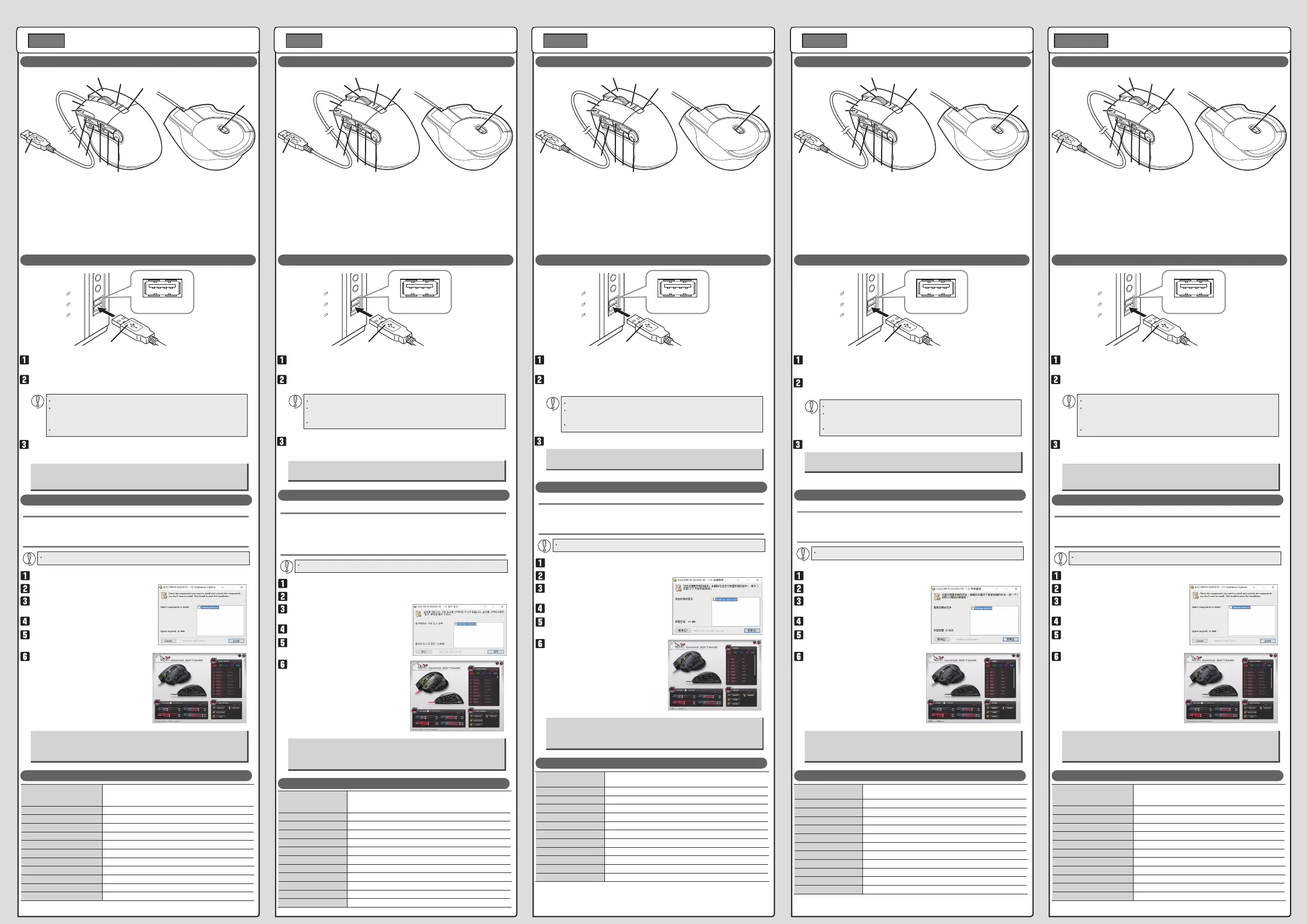
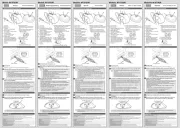
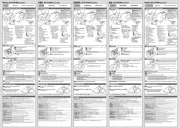
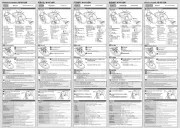
Names and functions of each part
Be sure to sufficiently check the connector orientation and the insertion location.
If you feel a strong resistance when inserting the USB connector, check that
the shape and orientation of the connector is correct. Using excessive force
may damage the connector and cause injury.
Do not directly touch the terminal area of the USB connector.
1
2
3
4
5
6
7
8
9
10
11
12
13
USB port
USB connector
Download the driver.
Install the driver
Keep the mouse connected to the PC.
You can assign a function to all the buttons and the wheel.
You need to download a driver from the ELECOM website to use its button
assignment function.
See the "Driver setting guide" on the ELECOM website for detail setting of the
driver.
www.elecom.co.jp/rd/global/download-list/
Supported OS Windows
®
10, Windows
®
8.1, Windows
®
7, Windows Vista
®
(Update for each new version of the OS or the installation of a
service pack might be required.)
Interface USB
Reading method Optical sensor
Number of buttons 10
Resolution 50 to 2400 dpi (can be set every 50 dpi)
Maximum tracking speed 30 inch (0.7 m)/sec.
Maximum polling rate 1000 Hz/sec.
Maximum acceleration detected 10 G
Dimensions (W × D × H) Approx. 77 × 113 × 42 mm
Cable length 1.5 m
Operating temperature/humidity 5°C to 40°C/90%RH or less (without condensation)
Storage temperature/humidity -10°C to 60°C/90%RH or less (without condensation)
각 부분의 명칭 및 기능
커넥터의 방향과 삽입 위치를 충분히 확인하십시오.
삽입이 잘 안될 경우에는 커넥터 모양과 방향이 올바른지 확인하십시오.
무리하게 밀어 넣으면 커넥터가 손상될 수 있습니다.
USB 커넥터의 단자 부분을 만지지 마십시오.
1
2
3
4
5
6
7
8
9
10
11
12
13
USB 포트
USB 커넥터
드라이버를 다운로드한다
드라이버 설치
본 제품을 연결해 두십시오.
모든 버튼 및 전후 스크롤 기능을 할당할 수 있습니다.
기능을 할당하려면 엘레컴 웹사이트에서 드라이버를 다운로드하여 설치하셔야 합니다.
드라이버의 설정 방법에 대해서는 엘레컴 웹사이트에 게재되어 있는 'Driver setting
guide (드라이버 설정 가이드)'를 참조하십시오. 아래의 URL에 방문해 주십시오.
www.elecom.co.jp/rd/global/download-list/
各部分的名称及其作用
请仔细确认连接器的方向和插入部位。
插入时感到阻力大时,请确认连接器的形状与方向是否正确。强行插入可
能导致连接器破损或者人身伤害。
请不要触摸USB连接器的端子部。
1
2
3
4
5
6
7
8
9
10
11
12
13
USB端口
USB连接器
获取驱动程序
安装驱动程序
请先安装本产品。
可为所有的按钮及前后滚轮分配功能。
要分配功能,需要从本公司网站获取驱动程序后安装。
关于设置驱动程序的方法,请浏览本公司网站上刊登的“Driver setting guide (驱
动程序设置指南)”。请访问下述的 URL。
www.elecom.co.jp/rd/global/download-list/
各部位名稱及功能
請充分確認連接器的方向和插入地方。
插入時,若感到強大阻力,請確認連接器的形狀和方向是否正確。若是強
硬插入,連接器可能破損,或者受傷。
請勿觸碰 USB 連接器的端子部。
1
2
3
4
5
6
7
8
9
10
11
12
13
USB埠
USB連接器
獲得驅動程式
安裝驅動程式
請安裝本產品。
能夠指定所有的按鍵及前後的滾輪功能。
要指定功能,必須從本公司網站獲得驅動程式,並且安裝。
關於驅動程式的設定方法,請參閱刊載於本公司網站的「Driver setting guide (驅
動程式設定指南)」。請連結至下列網址。
www.elecom.co.jp/rd/global/download-list/
Nama dan Fungsi dari Setiap Bagian
Pastikan dengan seksama memeriksa arah konektor dan posisi pemasangan.
Jika Anda ada sesuatu yang menahan dengan kuat saat memasukkan konektor
USB, periksa apakah bentuk dan arah konektor sudah benar. Memasukkan
konektor secara paksa dapat merusak konektor dan menyebabkan cedera.
Jangan secara langsung menyentuh area terminal konektor USB.
1
2
3
4
5
6
7
8
9
10
11
12
13
Port USB
Konektor USB
Unduh driver.
Pasang driver
Tetap hubungkan mouse ke PC.
Anda dapat menetapkan fungsi ke semua tombol, dan roda.
Anda harus mengunduh driver dari situs web ELECOM untuk menggunakan fungsi
penetapan tombol.
Baca "Driver setting guide (Panduan pengaturan driver)" pada situs web ELECOM untuk
rincian pengaturan driver.
www.elecom.co.jp/rd/global/download-list/
지원 OS Windows® 10、Windows® 8.1、Windows® 7、Windows Vista®
( 각 OS 의 최신 버전으로 업데이트 및 서비스 팩을 설치해야 하는 경우
가 있습니다 .)
대응 인터페이스 USB
센서 방식 광학 센서
버튼 수 10
카운트 수 50~2400 카운트 (50 단위로 설정 가능 )
최대 트래킹 속도 30 인치 (0.7m)/ 초
최대 리포트 레이트 1000 리포트/초
최대 검출 가속도 10G
외형 치수(폭x 깊이 x 높이 ) 약 77 x 113 x 42mm
케이블 길이 1.5 m
동작 온도/습도 5℃~ 40℃ / ~ 90% RH( 단 , 결로가 없을 때 )
보존 온도/습도 -10℃~ 60℃ / ~ 90% RH( 단 , 결로가 없을 때 )
支持 OS(操作系统) Windows® 10、Windows® 8.1、Windows® 7、Windows Vista®
(有时需要更新到各操作系统的最新版本,安装服务包。)
支持接口
USB
传感器方式
光学式传感器
按钮数
10
分辨率 50~2400 分辨率(可以 50 为单位设置)
最大跟踪速度 30 英寸(0.7m)/ 秒
最大轮询率 1000 Hz/ 秒
最大检测加速度 10G
外形尺寸(宽×深×高) 约 77 × 113 × 42mm
连接线长 1.5 m
工作温度/湿度 5℃~ 40℃ ,90%RH(但无结露)
存放温度/湿度 -10℃~ 60℃,90%RH(但无结露)
支援 OS Windows® 10、Windows® 8.1、Windows® 7、Windows Vista®
(可能必須更新至各 OS 的最新版本和安裝服務包。)
適用介面 USB
感測方式 光學感測器
按鍵數量 10
解析度 50 ~ 2400 解析度(能夠以 50 為單位設定)
最大追蹤速度 30 英尺 (0.7m)/ 秒
最大回報率 1000 Hz/ 秒
最大檢測加速度 10G
外型尺寸(寬×深×高) 約 77 ×113 × 42 mm
線長度 1.5 m
動作溫度/濕度 5℃~ 40℃ / ~ 90%RH(必須無水氣凝結)
存放溫度/濕度 -10℃~ 60℃ / ~ 90%RH(必須無水氣凝結)
Bahasa Indonesia
OS Didukung Windows® 10, Windows® 8.1, Windows® 7, Windows Vista®
(Pembaruan untuk setiap versi baru OS atau pemasangan paket layanan
dapat diperlukan.)
Antarmuka USB
Metode pembacaan Sensor optik
Jumlah tombol 10
Resolusi 50 atau 2400 dpi (dapat diatur setiap 50 dpi)
Kecepatan pelacakan maksimum 30 inci (0,7 m)/dtk.
Tingkat polling maksimum 1000 Hz/dtk.
Maksimum akselerasi terdeteksi 10 G
Dimensi (L x P x T) Sekitar 77 × 113 × 42 mm
Panjang kabel 1,5 m
Suhu/kelembaban pengoperasian 5°C hingga 40°C/90%RH atau kurang (tanpa kondensasi)
Suhu/kelembaban penyimpanan -10°C hingga 60°C/90%RH atau kurang (tanpa kondensasi)
MMO gaming mouse
Manual
ENGLISH
Start the PC.
Using the mouse
4 Gaming button (G2)
Start the PC, and then wait for it to be ready to perform operations.
Any USB port may be used.
Basic specifications
3 Wheel
Each press of the button
will switch to the next
button profile. (Initial
setting: Profile 1)
5 to 10
Gaming buttons
(G1, G3 to G7)
A function can be assigned to
each button. No function is
assigned at the time of purchase.
12 USB connector (male)
13 Optical sensor
11
Button profile indicator light
The color of the light
indicates the button profile.
Profile 1 red
Profile 2 green
Profile 3 blue
Profile 4 pink
Profile 5 light blue
1 Left button
2 Right button
Insert the USB connector of the product into a USB port on the PC.
The installer is started.
Check the component to install
and click "Install".
The driver will be automatically installed, and you will then be
able to use the gaming mouse.
Install the driver
Access the ELECOM website below and download the driver.
www.elecom.co.jp/rd/global/download-list/
Double-click the downloaded "M-DUX30_50_VXX(exe)" file.
Click "Close".
The setting screen is displayed
and product recognition starts.
When the driver setting screen is
displayed, the driver installment is
completed. Now the gaming
mouse is ready to be used.
MMO 게이밍 마우스
취급설명서
한국어
컴퓨터를 부팅합니다.
마우스 사용방법
4 게이밍 버튼 (G2)
컴퓨터를 부팅하고 사용 가능한 상태가 될 때까지 기다리십시오.
어떤 USB 포트에도 사용할 수 있습니다.
기본 사양
3 휠
버튼을 누를때마다 버튼
모드를 순서대로 전환할
수 있습니다. (초기값
프로파일 1)
5 ~ 10
게이밍 버튼
(G1, G3~G7)
기능을 할당할 수 있는 버튼입니다.
구입하신 상태에서는 아무런
기능도 할당되어 있지 않습니다.
12 USB 커넥터(수)
13 광학식 센서
11
모드 표시 램프
버튼 모드를 램프 색상으로
표시합니다.
프로파일 1 빨간색
프로파일 2 녹색
프로파일 3 파란색
프로파일 4 핑크색
프로파일 5 하늘색
1 좌 버튼
2 우 버튼
본 제품의 USB 커넥터를 컴퓨터 USB 포트에 삽입합니다.
설치 프로그램이 기동됩니다.
'설치하려는 구성 요소 선택'에서 필요에
따라 체크하고 '설치'를 클릭합니다.
드라이버가 자동적으로 설치되어 게이밍 마우스를 사용할 수
있습니다.
드라이버 설치
드라이버를 다운로드하려면 아래의 폐사 제품 페이지를 방문하여 드라이버를
다운로드하십시오.
www.elecom.co.jp/rd/global/download-list/
다운로드한 'M-DUX30_50_VXX(.exe)'를 더블 클릭합니다.
[닫기]를 클릭합니다.
설정 화면이 기동되고 본 제품의
인식을 시작합니다.
드라이버 설정 화면이 표시되면
드라이버 설치가 완료되며 게이밍
마우스를 사용할 수 있습니다.
MMO 游戏鼠标
使用说明书
启动计算机。
鼠标的使用方法
4 游戏按钮 (G2)
启动计算机,在进入可操作状态前,请稍等。
可使用任意一个 USB 端口。
基本规格
3 滚轮
每按一次按钮 , 依次切
换按钮模式。(初始值
模式 1)
5 ~ 10
游戏按钮
(G1、G3~G7)
这是可分配功能的按钮。购买时,
没有分配任何功能。
12 USB连接器(公端)
13 光学式传感器
11
模式指示灯
用指示灯的颜色表示按钮
模式。
模式 1 红
模式 2 绿
模式 3 蓝
模式 4 粉红
模式 5 水色
1 左键
2 右键
将本产品的USB连接器插入计算机的USB端口。
安装器启动。
在“选定安装的组件”中,根据需
要勾选,点击“安装”。
自动安装驱动程序,这样就可以使用游戏鼠标了。
安装驱动程序
要获取驱动程序,请访问下述的本公司产品页面,下载安装程序。
www.elecom.co.jp/rd/global/download-list/
双击下载的“M-DUX30_50_VXX(.exe)”。
单击[关闭]。
设置画面启动,开始识别本产品。
如果显示驱动程序的设置画面,驱
动程序的安装就完成了。这样就可
以使用游戏鼠标了。
MMO 遊戲滑鼠
使用說明書
開啟電腦。
滑鼠的使用方法
4 遊戲鍵 (G2)
啟動電腦,變成能夠操作的狀態之前,請稍候。
USB 埠能夠使用任何一個埠。
基本規格
3 滾輪
每按鍵一次,就會依序
切換按鍵模式。(初始值
模式 1)
5 ~ 10
遊戲鍵
(G1, G3 to G7)
能夠指定功能的按鍵。購買時,
沒有指定任何功能。
12 USB連接器(公頭)
13 光學感測器
11
模式顯示燈
以燈的顏色顯示按鍵模
式。
模式 1 紅
模式 2 綠
模式 3 藍
模式 4 粉紅
模式 5 水藍
1 左鍵
2 右鍵
將本產品的USB連接器插入電腦的USB埠。
啟動安裝器。
在「選取安裝的元件」,依需要勾
選,點選[安裝]。
驅動程式會自動安裝,能夠使用遊戲滑鼠。
安裝驅動程式
要獲得驅動程式,請連結至下列的本公司產品網頁,下載驅動程式。
www.elecom.co.jp/rd/global/download-list/
雙點下載的「M-DUX30_50_VXX(.exe)」。
點選[關閉]。
啟動設定畫面,開始辨識本產品。
若顯示驅動程式的設定畫面,驅動
程式即安裝完成。能夠使用遊戲滑
鼠。
Mouse permainan MMO
Manual
Nyalakan PC.
Penggunaan mouse
4 Tombol permainan (G2)
Hidupkan PC, dan tunggu hingga siap untuk melakukan operasi.
Setiap port USB dapat digunakan.
Spesikasi dasar
3 Roda
Setiap menekan tombol
akan beralih ke prol
tombol berikutnya.
(Pengaturan awal: Prol 1)
5 hingga 10
Tombol permainan
(G1, G3 hingga G7)
Fungsi dapat ditetapkan untuk
setiap tombol. Tidak ada fungsi
yang ditetapkan pada awal
pembelian.
12 Konektor USB (jantan)
13 Sensor optik
11
Tombol lampu indikator prol
Warna lampu menunjukkan
prol tombol
Prol 1 merah
Prol 2 hijau
Prol 3 biru
Prol 4 merah muda
Prol 5 biru muda
1 Tombol kiri
2 Tombol kanan
Masukkan konektor USB produk ke dalam port USB pada PC.
Pemasang akan memulai.
Periksa komponen untuk dipasang,
dan klik "Install".
Driver akan secara otomatis diinstal, dan Anda dapat menggunakan
mouse permainan.
Pasang driver
Masuk ke situs web ELECOM di bawah ini, dan unduh driver mouse.
www.elecom.co.jp/rd/global/download-list/
Klik dua kali le "M-DUX30_50_VXX(exe)" yang telah diunduh.
Klik "Close".
Layar pengaturan akan ditampilkan,
dan memulai pengenalan produk.
Saat layar pengaturan ditampilkan,
maka pemasangan driver telah
selesai. Mouse permainan siap
digunakan.
中文・简体 中文 ・繁體
Product number: M-DUX30 제품번호: M-DUX30 产品编号: M-DUX30 產品編號: M-DUX30 Nomor produk: M-DUX30